









































How to Equip and Customize the Rust Gesture Wheel
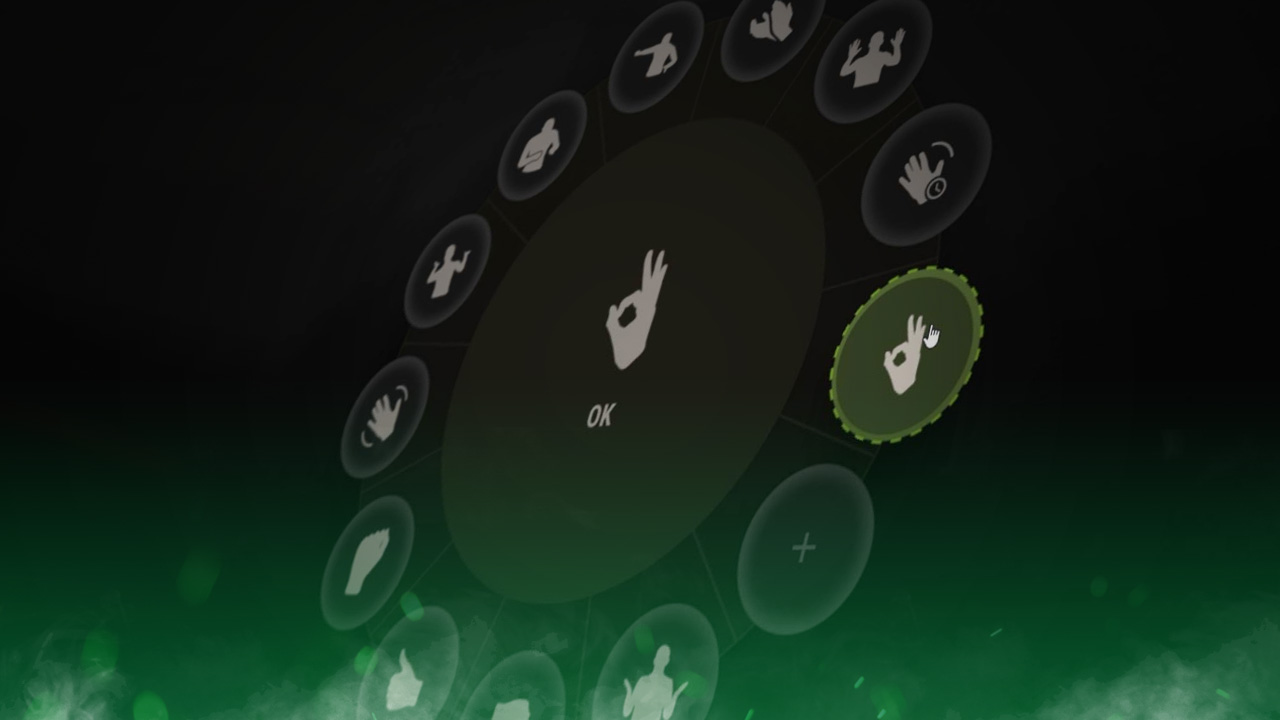
The Harder Core update in August introduced a completely redesigned menu, bringing with it loads of new features, including a reimagined gesture wheel. The new wheel allows you to easily drag and drop gestures from an organized list of pre-owned emotes and also allows you to see which gestures you currently own. By the end of this article, you will easily be able to equip and customize Rust’s new gesture wheel.

Check out the rest of the Maintenance update in our update guide:
Where to Find Rust’s Gesture Wheel
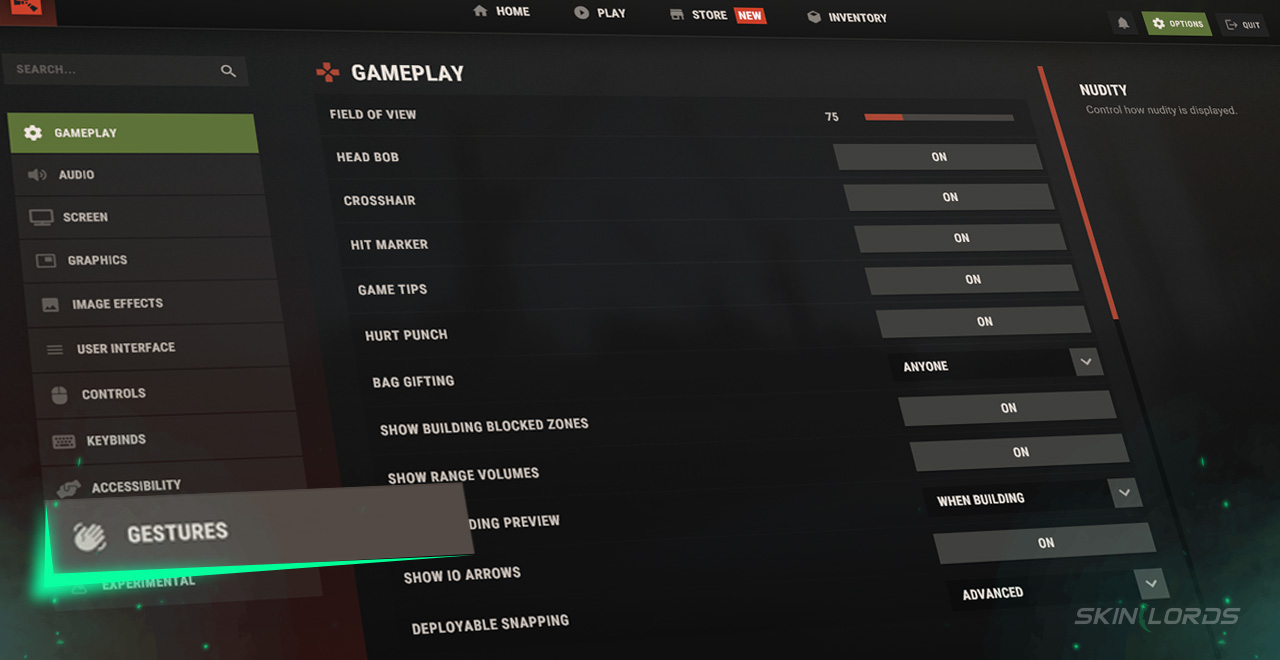
To first find Rust’s gesture wheel and begin managing your emotes, you must first navigate to the options labeled in the top-right of the main menu. After entering the settings, head over to the horizontal tab bar on the left side of the screen. The second-to-last option, “Gestures,” will lead you directly to Rust’s gesture wheel.
How to Use Rust’s Gesture Wheel
After successfully navigating to Rust’s gesture wheel, you can begin to select and edit emotes as you please. Simply drag and drop emotes over existing slots to equip any gesture of your choosing, or right-click a full slot to clear a gesture entirely. Gestures can be found on the right side of the screen and are organized by DLC.
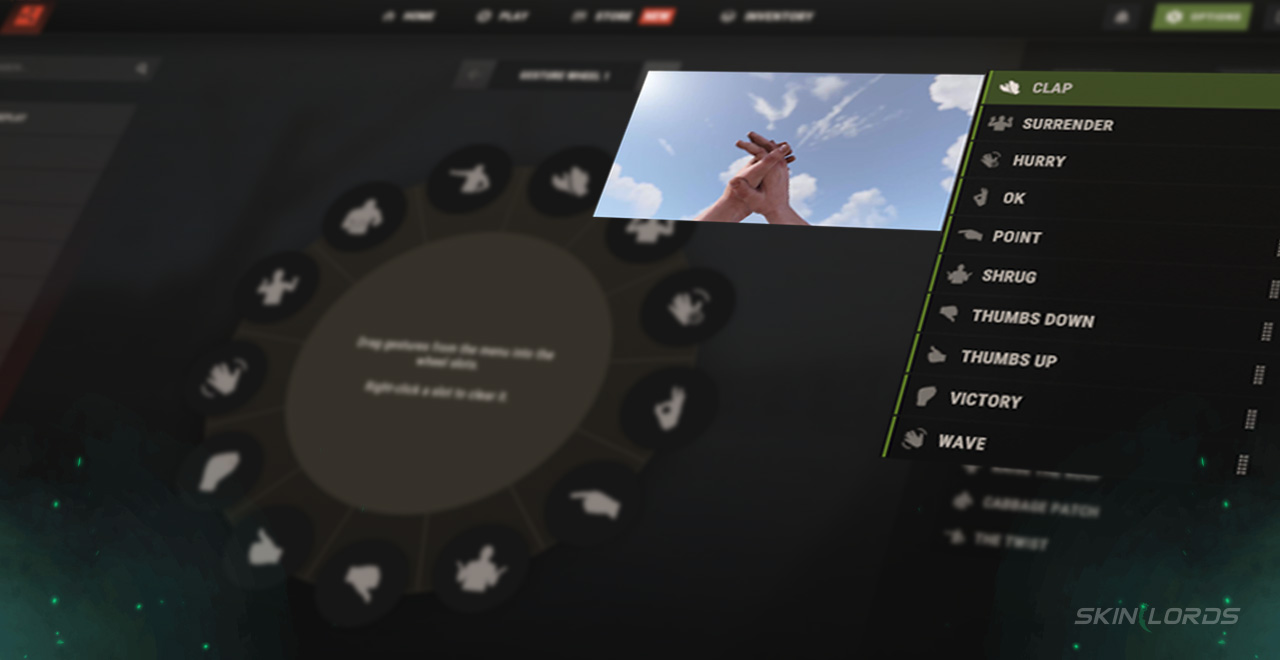
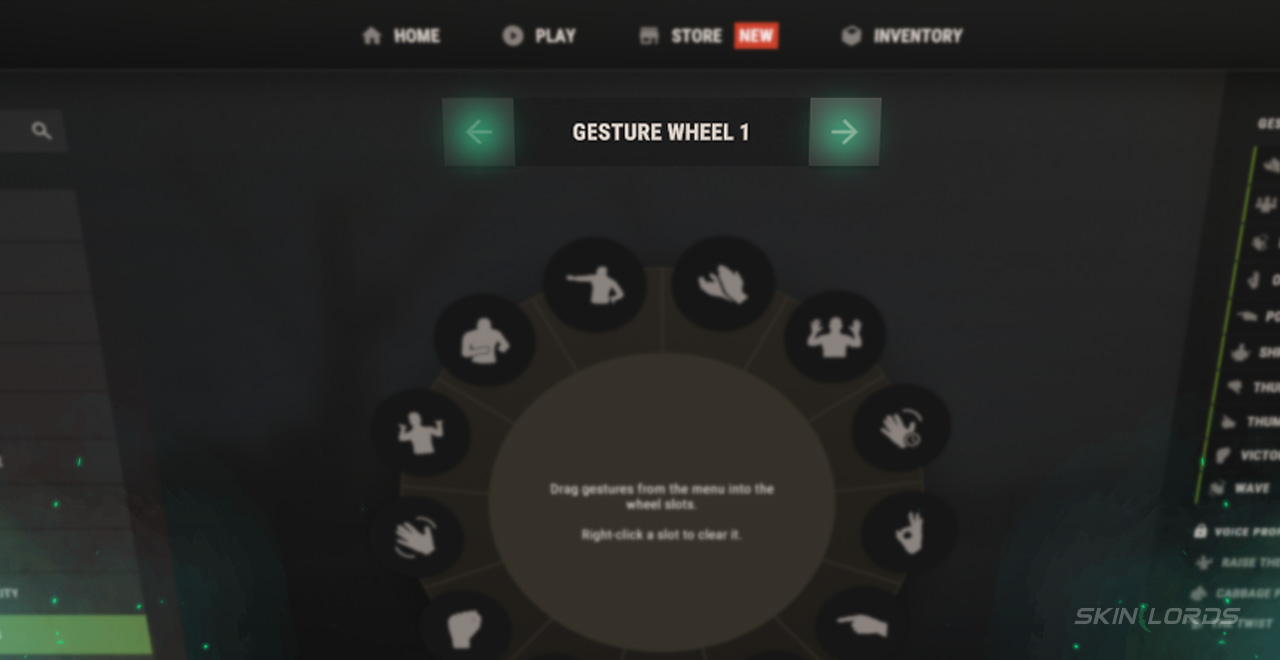
Next to the gestures label in the top-right sits a small button allowing you to reset the gesture wheel to default. Directly above the wheel itself are two arrows that allow you to select between each of your gesture wheels.
With all of that said, you should now be able to customize your gesture wheel to absolute perfection. If you enjoyed this article, check out our article covering the Voice Props Pack, which adds three gestures of its own, or leave a comment on what we should cover next. See you next time!

Similar Articles
See all
Rust Guides
Rust Workbench Upgrades: Every Upgrade and How to Get Them
08.07.2026
0
32
Rust Guides
Rust Apartment Complex: How to Rent and Use Shops
08.07.2026
0
31
Related Casinos
 Stake
Stake
Leave a reply