










































How to Change CS2 Crouch Settings
In this article, we will take a look at how you can change your CS2 crouch settings, the easiest way possible! Known for its high level of competition, CS2 is not a game to play on the default settings handed to you upon installation. To truly succeed at a high level, a player must undoubtedly adjust their settings to a custom preference.

Check out more CS2 gameplay and settings guides on our blog:
What are CS2 Crouch Settings?
The term “crouch settings” is quite broad, so for the purpose of this article, we will focus on the two most important settings for the CS2 crouch: crouch mode and your crouch bind. Crouch mode is something many Counter-Strike players aren’t even aware of. By default, your crouch mode will be set to “hold,” meaning that to remain crouched, you must hold the bound crouch key, while the only other crouch mode, “toggle,” allows you to simply click on and off crouching. A crouch bind is simply the key that you press to crouch.
Why Change CS2 Crouch Settings?
For many, the idea of toggling crouch is absolutely ridiculous. Making things such as crouch jumping and crouch toggling harder definitely has its downsides, but it is important that you don’t just throw it away altogether. A major benefit of using a toggle mode is that it allows lurking without the discomfort or worry of holding down a crouch bind for long periods.
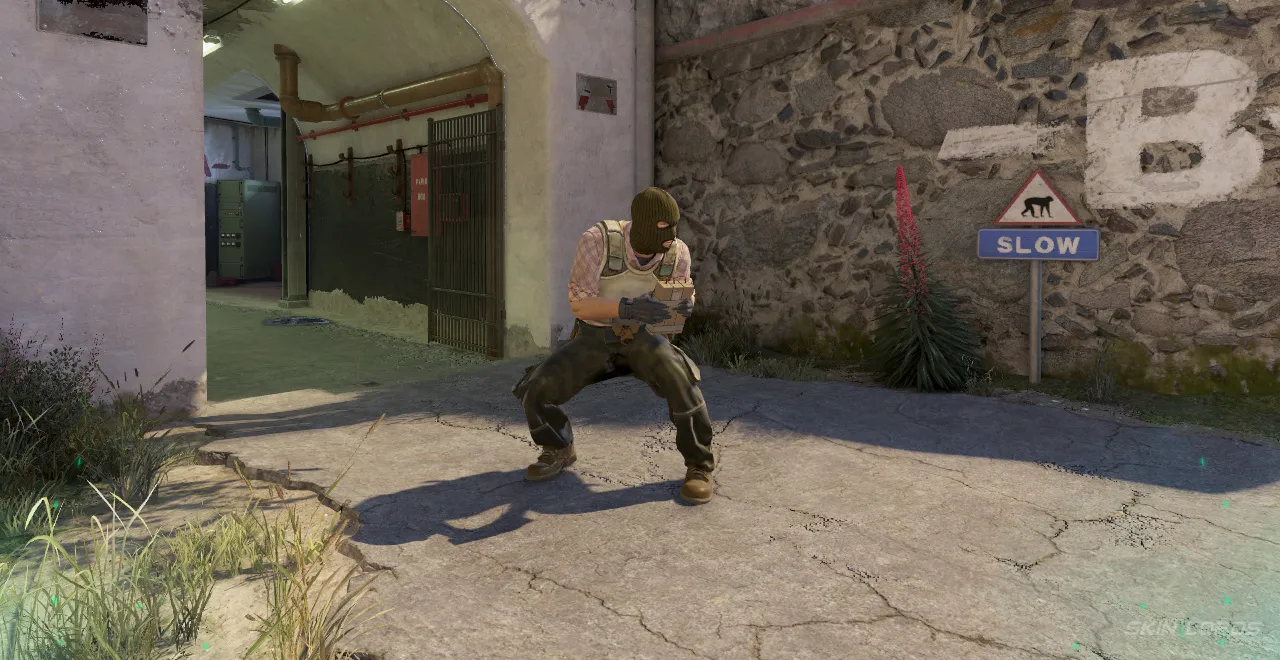
Although the default crouch bind isn’t horribly placed, like all CS2 settings, it should be customized to your preferences and, especially, your setup. Whether it’s a button on your mouse or a key across your keyboard, changing your crouch bind to something comfortable to you will make a world of difference.
Changing CS2 Crouch Settings
How To Change CS2 Crouch Mode:
- Launch CS2 and locate the settings wheel in the top left corner of the screen
- Once in settings, navigate to the “Keyboard/Mouse” section
- At the very top of the section is a tab titled “Keyboard & Mouse Settings”, underneath it is a setting called “Duck Mode.”
- From there, Duck Mode (or crouch mode) can be changed between either “Toggle” or “Hold” using a selector on the right-hand side of the menu
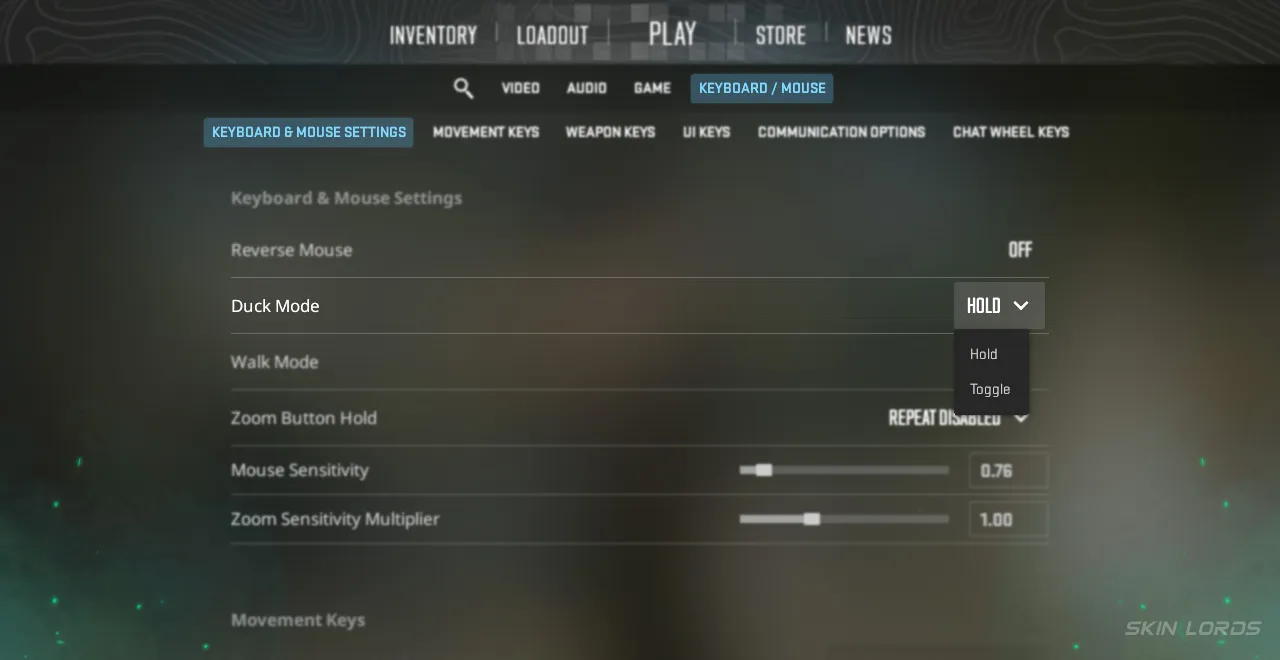
To Change CS2 Crouch Bind:
- Launch CS2 and locate the settings wheel in the top left corner of the screen
- Once in settings, navigate to the “Keyboard/Mouse” section
- At the very top of the section is a tab titled “Movement Keys”, underneath it is a bind titled “Duck.”
- To change your duck (or crouch) bind, simply click the section on the right-hand side and press the new key you desire to crouch with
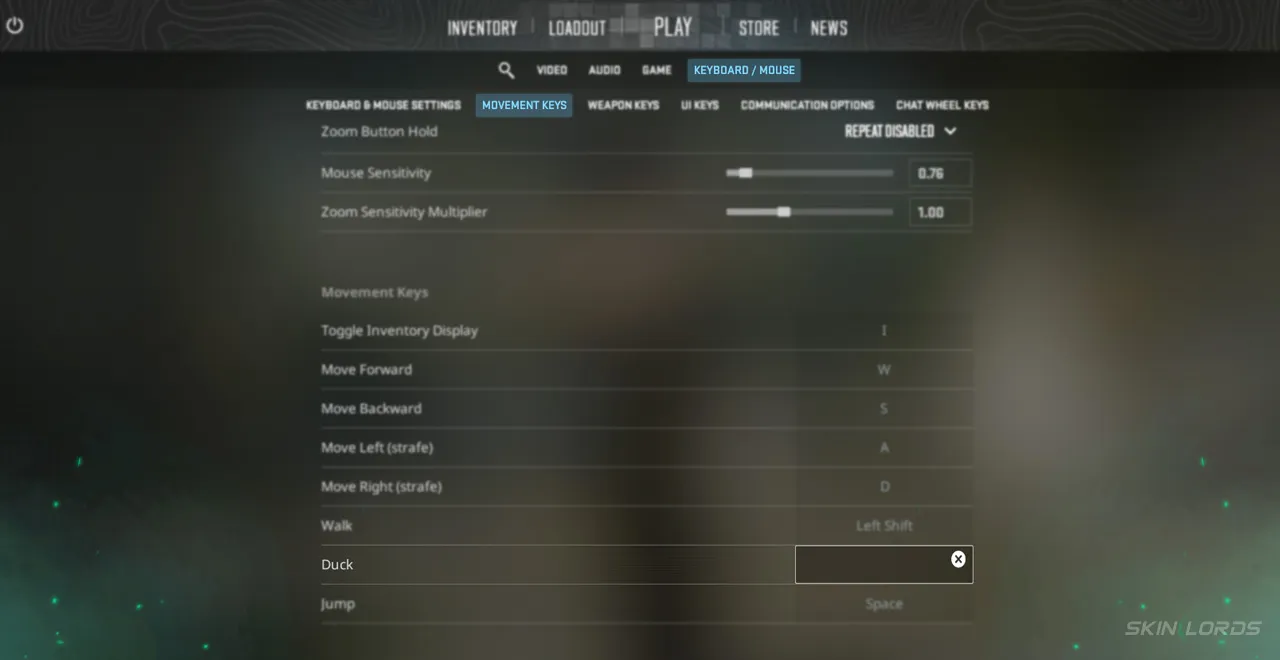
Extremely easy to change, or even return to default, why not play around with your crouch settings a bit and see what works best for you? If you have enjoyed this article and would like to see more setting guides like it, feel free to leave a comment down below on the setting you’d like to see covered next!

Similar Articles
See all
Guides
Which CS2 Cases Have Bloodhound Gloves?
07.31.2026
0
32
Guides

Every CS2 Skin With A Blue Gem Pattern
07.31.2026
0
42
Related Casinos

 Stake
Stake
Leave a reply