


































Best CS2 Radar Settings and Commands
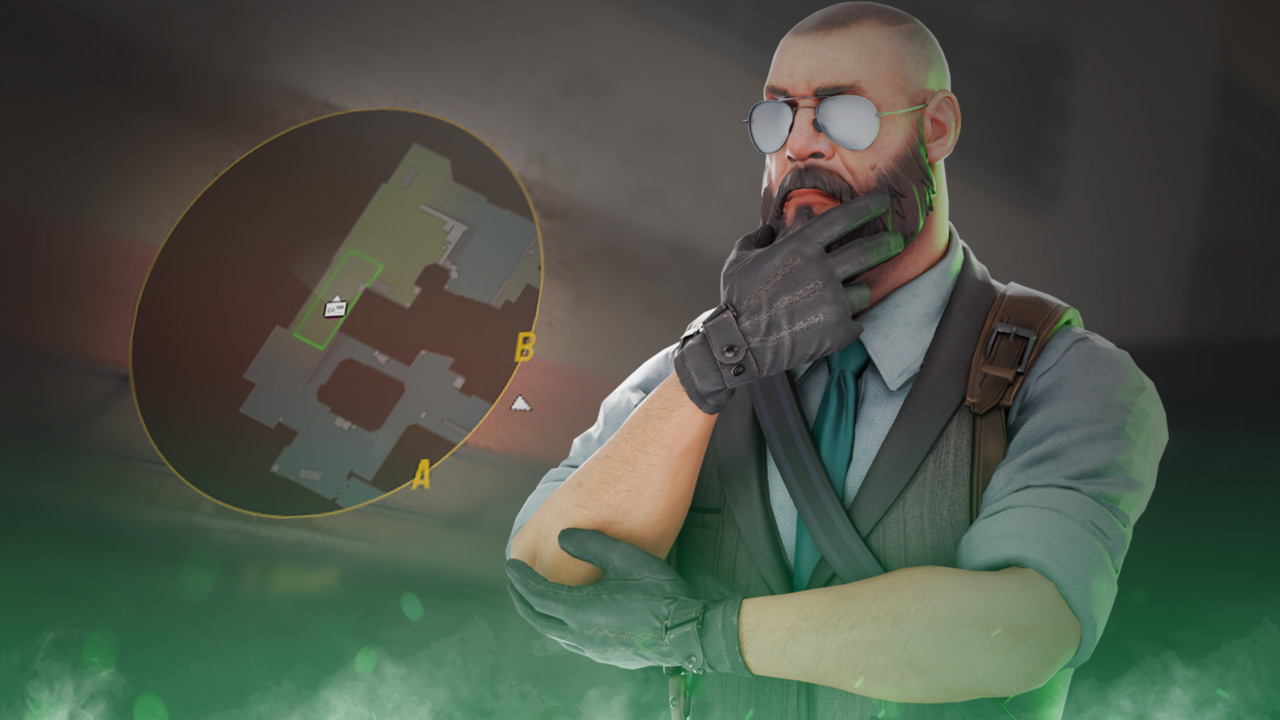
The CS2 radar can be left untouched at times, and that can be holding you back. Whether it’s too big, distracting your line of sight, or so small it’s ineffective, having CS2 radar settings is essential to improving your CS2 experience. Today, we will take a look at how you can adjust your CS2 Radar settings to your liking.
Enable Developer Console
Before working with CS2 Radar Commands, you must first turn on the Developer Console.

Don't know how to activate the developer console? Use this guide:
Important CS2 Radar Commands to Know
CS2 Radar settings aren’t the only way to get that Radar right. Specific Radar commands can offer more than just basic setting adjustments. Here are some useful CS2 Radar Commands and what they do!
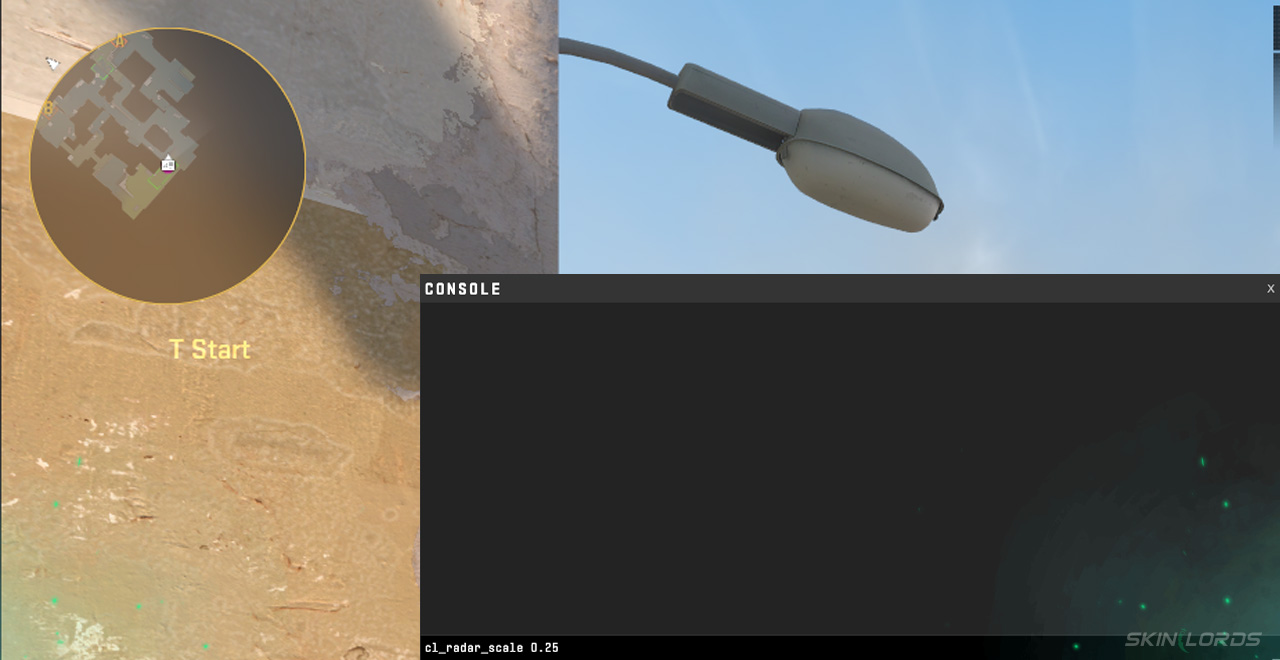
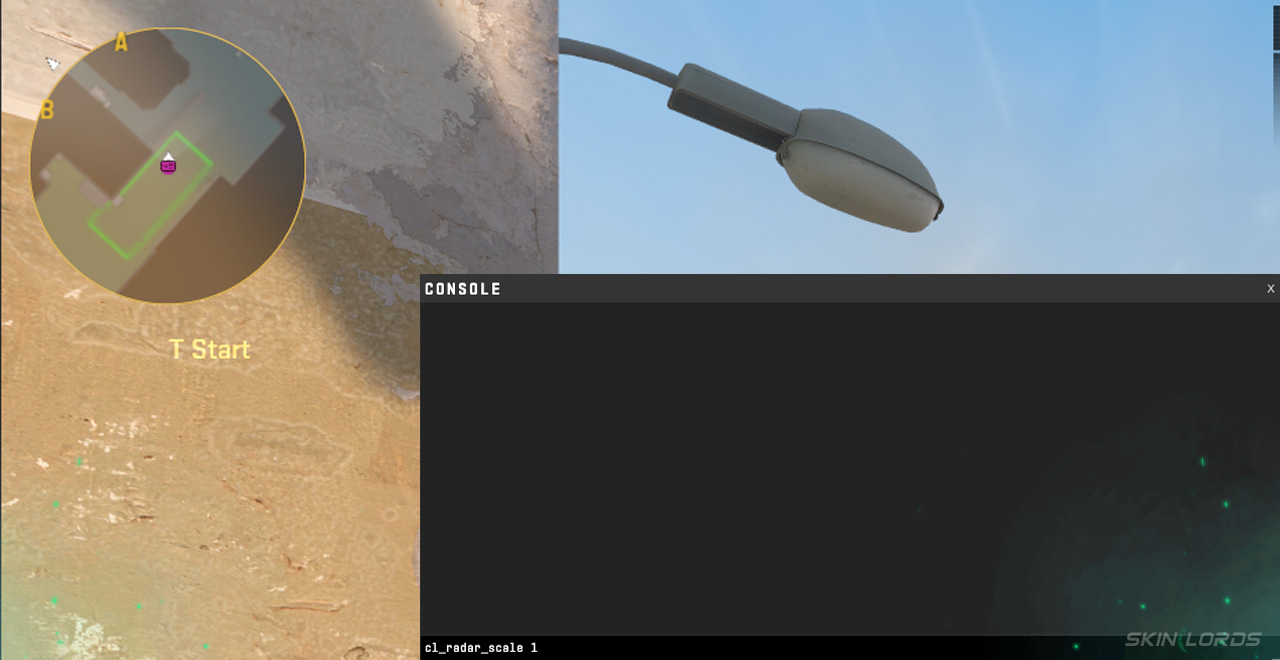
Radar Scale: cl_radar_scale. This adjusts how zoomed in your radar is. Adjusting it can lead to either a larger view or a more finite perspective. In terms of range, this command can be used from 0.25 to 1, but 0.5 is recommended for the perfect middle ground.
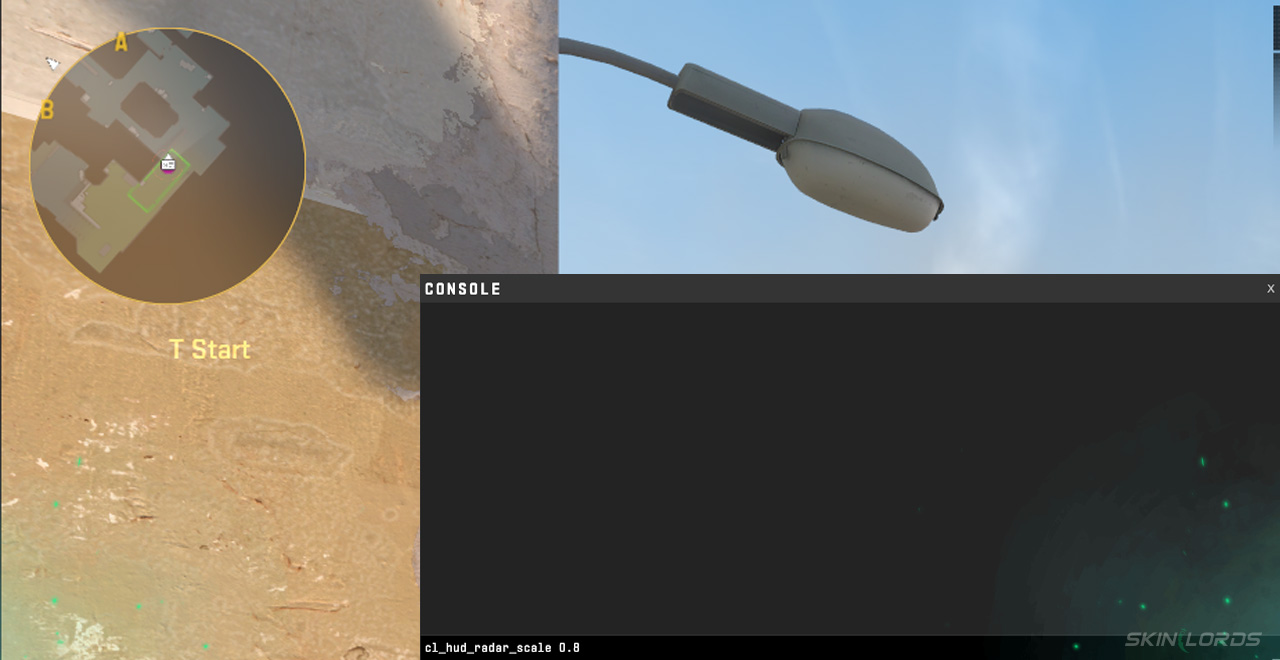
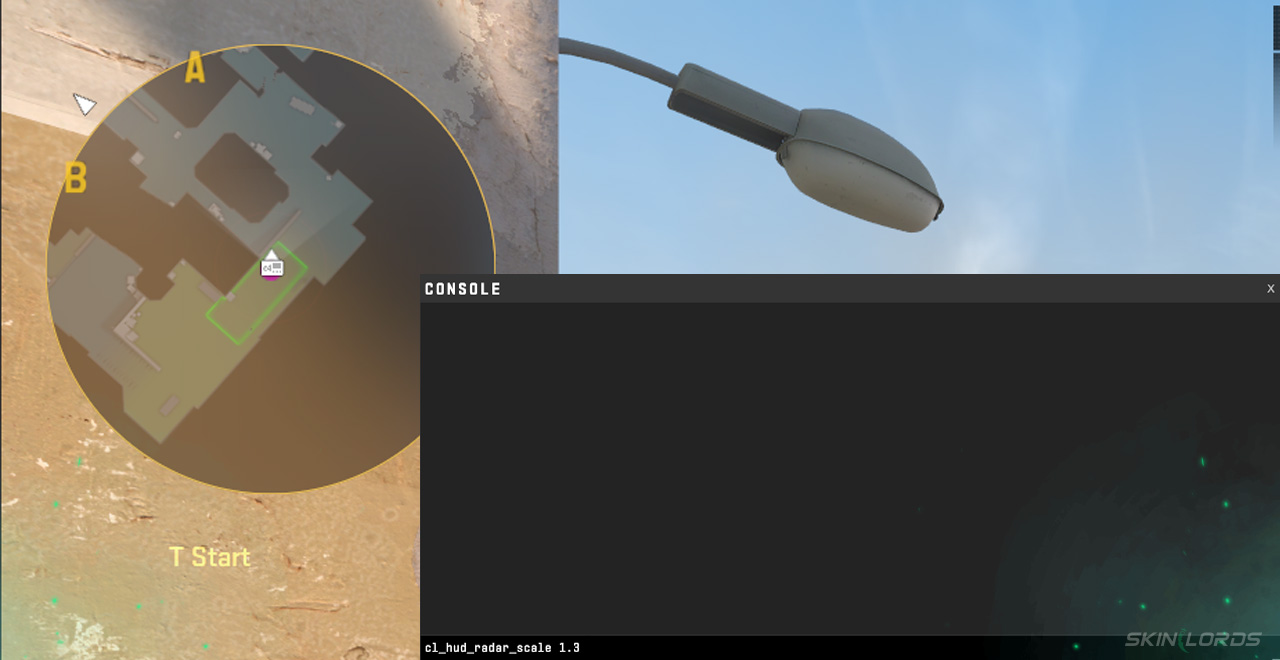
HUD Radar Scale: cl_hud_radar_scale. This command adjusts the radar size on your HUD. It has a range of 0.8 to 1.3, but an ideal size should be around 1.0-1.2
Centered Radar: cl_radar_always_centered. Adjusts whether the player is centered on the Radar. This can be used on a system of 0 (not centered) or 1 (centered). An ideal value for this command would be 0.

Check out more CS2 settings and gameplay guides on our blog:
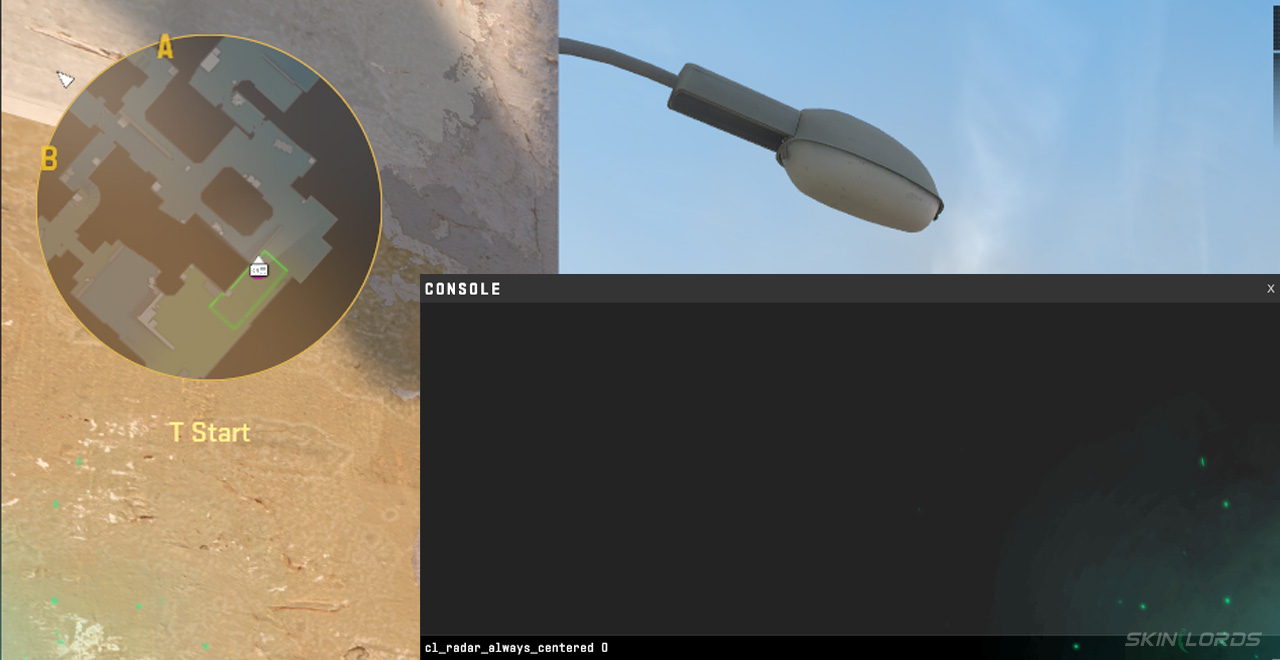
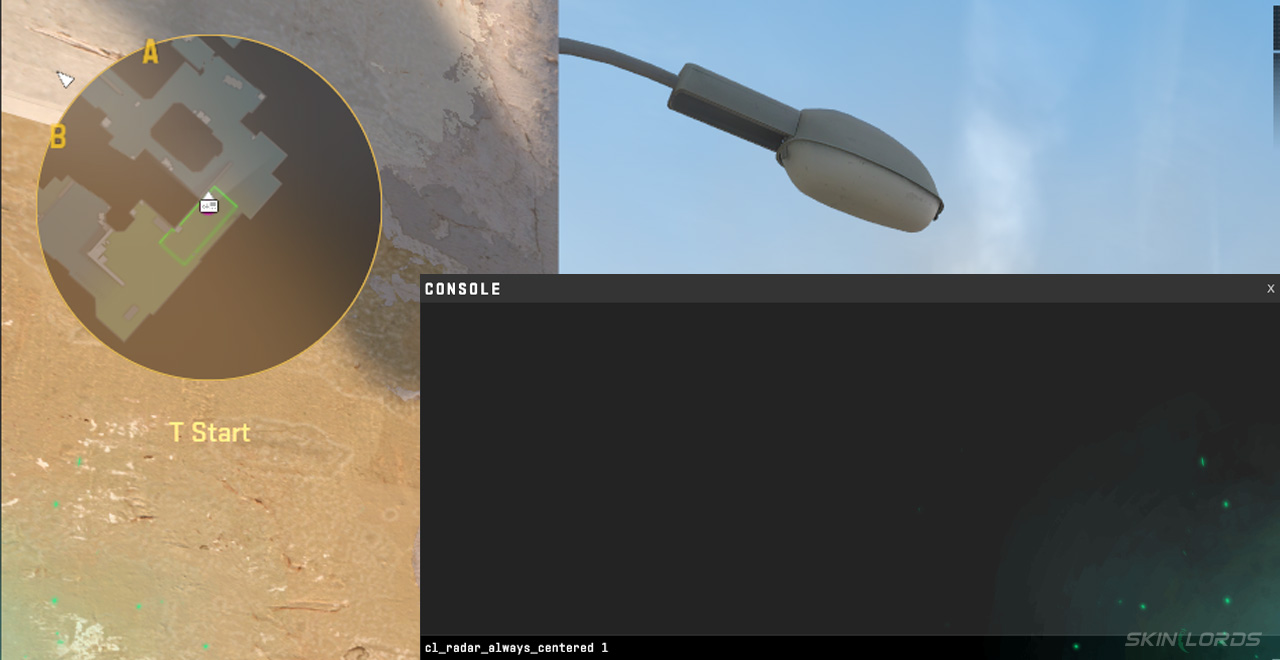
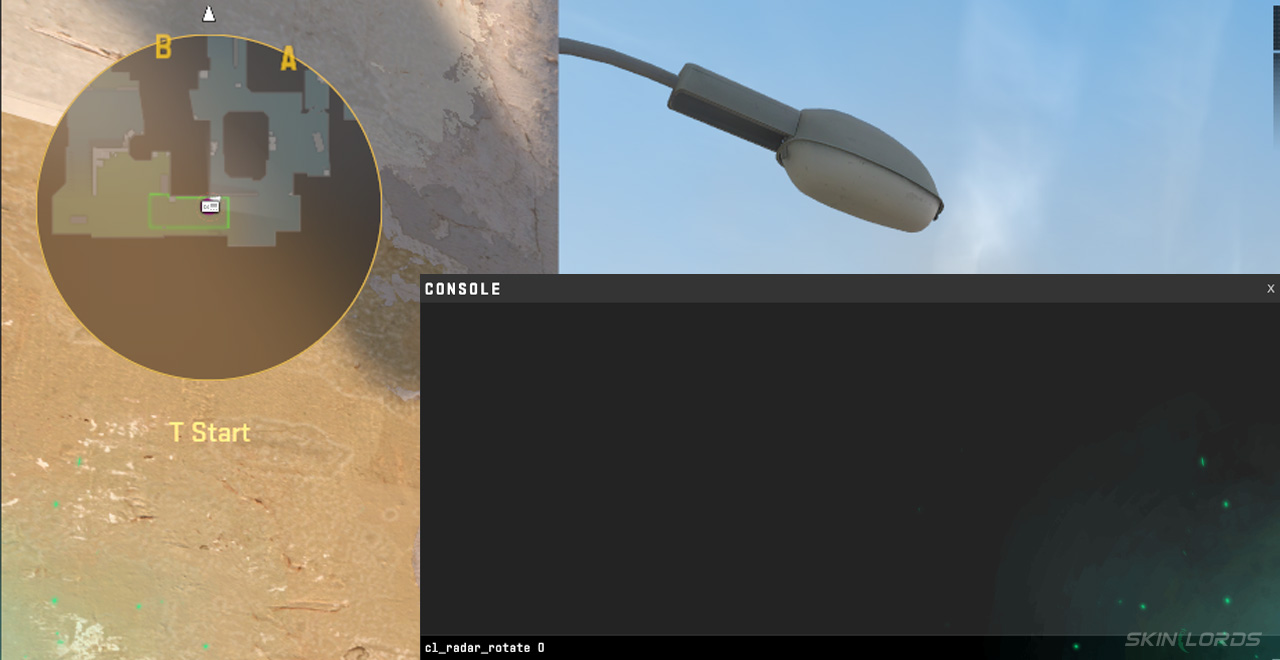
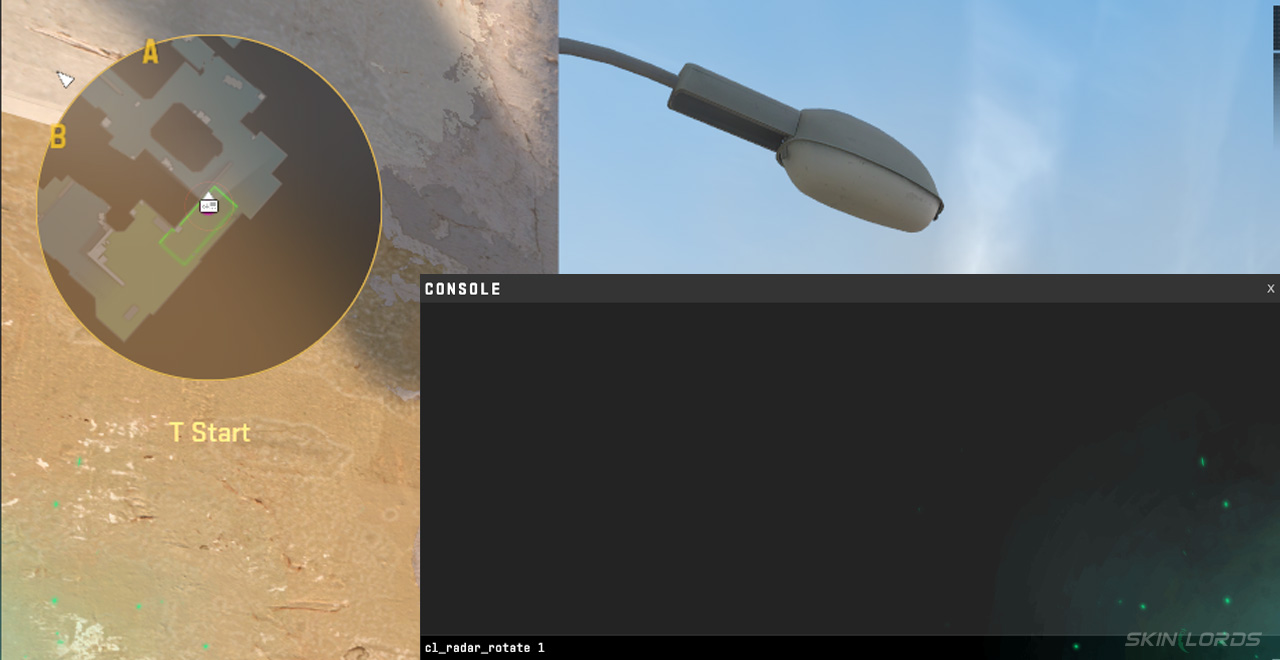
Rotating Radar: cl_radar_rotate. This command adjusts radar rotation. An input of 0 will stop radar rotation, while 1 will allow it, depending on player movement. It is recommended to keep this setting at 1 for easier navigation.
Icon Scale: cl_radar_icon_scale_min. Icon scale adjusts the size of the player’s icon on the radar itself. This can be set to 0.4-1, but it’s recommended to set it to around 0.6 to keep the icon apparent but not dominant.
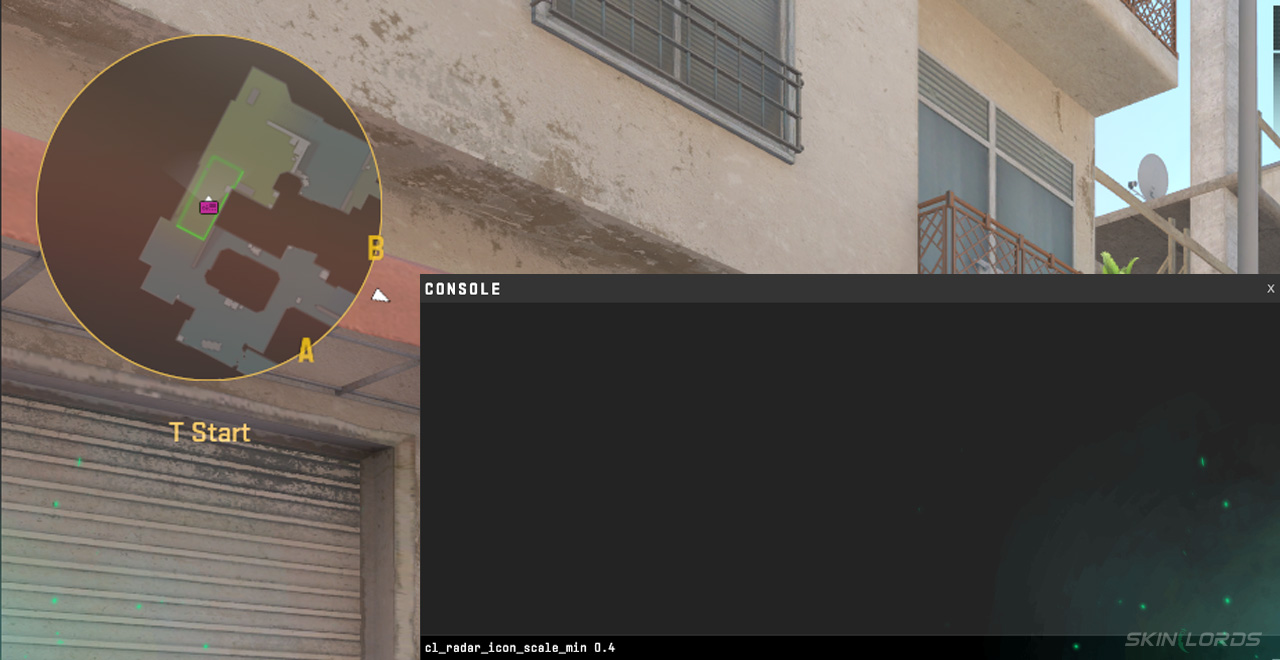
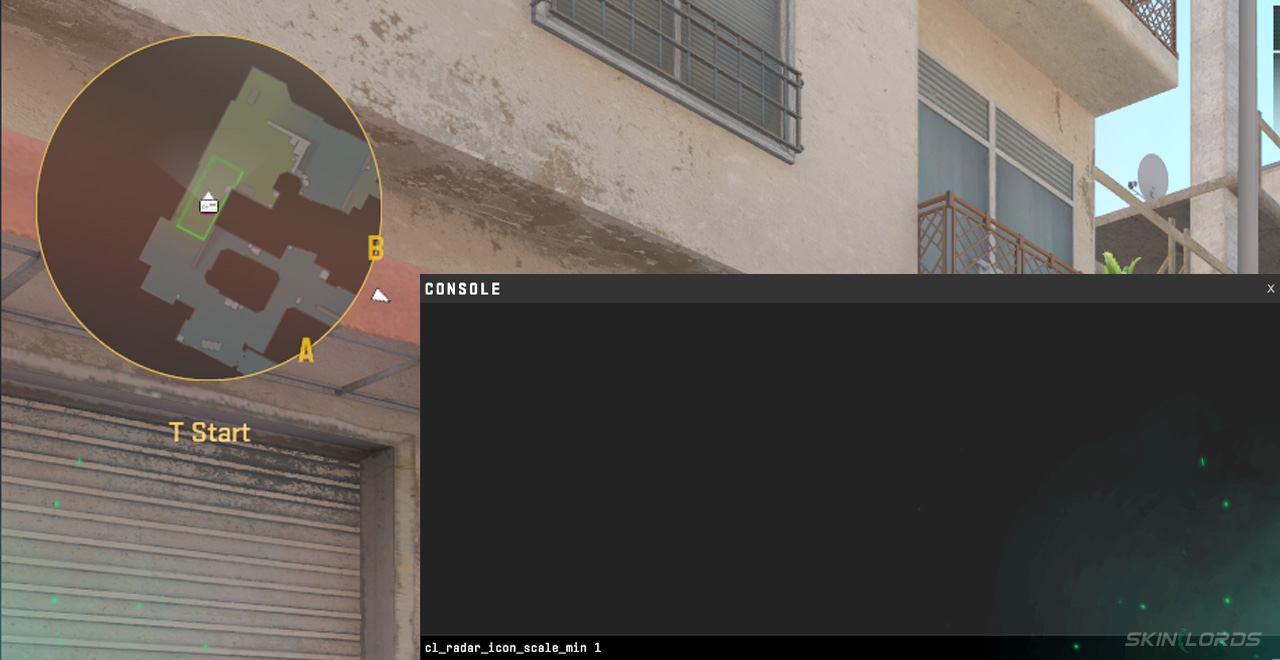
After playing with these CS2 Radar settings, you will quickly learn that anything is better than the default radar settings! If you have enjoyed this guide and would like to see more like it, please feel free to leave a comment down below on what you’d like to see next!

Similar Articles
See all
Game Customization
Which CS2 Cases Have Bloodhound Gloves?
07.31.2026
0
32
Game Customization
Every CS2 Skin With A Blue Gem Pattern
07.31.2026
0
42
Related Casinos

 Stake
Stake
Leave a reply