












































How to Change CS2 Walk Settings
Today, we will take a look at how you can change your CS2 walk settings, the easiest way possible! Known for its intense competitive play, CS2 is not a game to take lightly if you intend on reaching your highest potential. Make that first step, and customize your settings to what works best for you and your playstyle.

Check out more CS2 gameplay and settings guides on our blog:
What are CS2 Walk Settings?
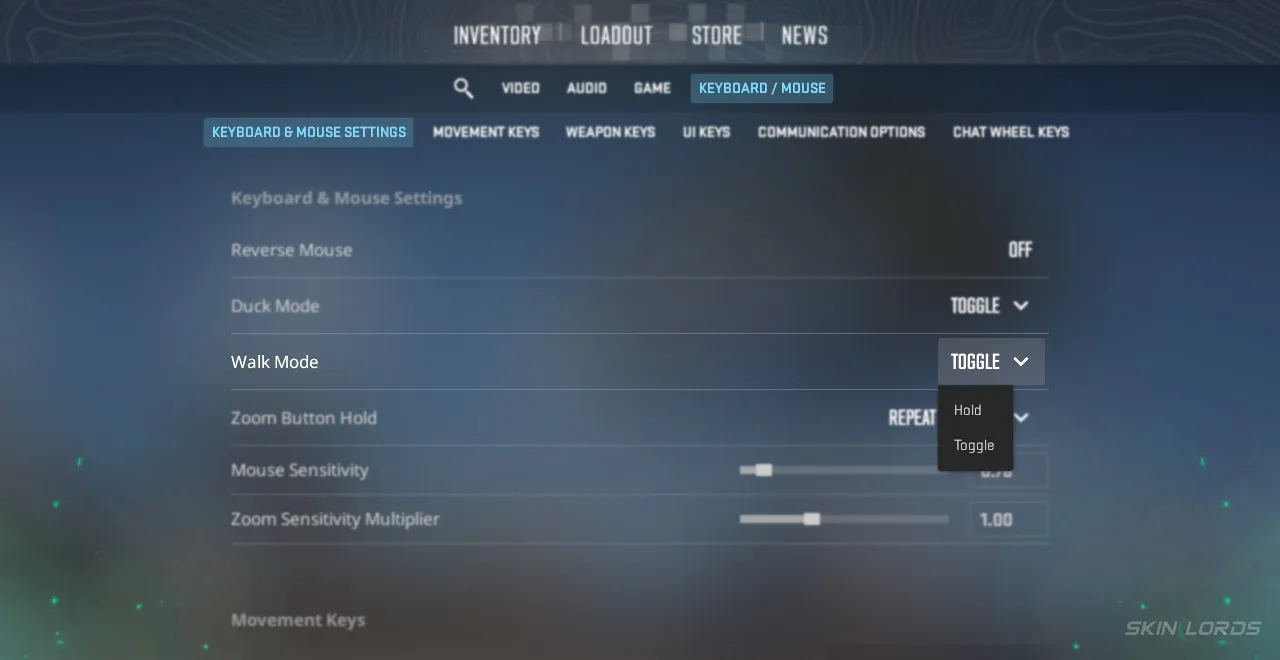
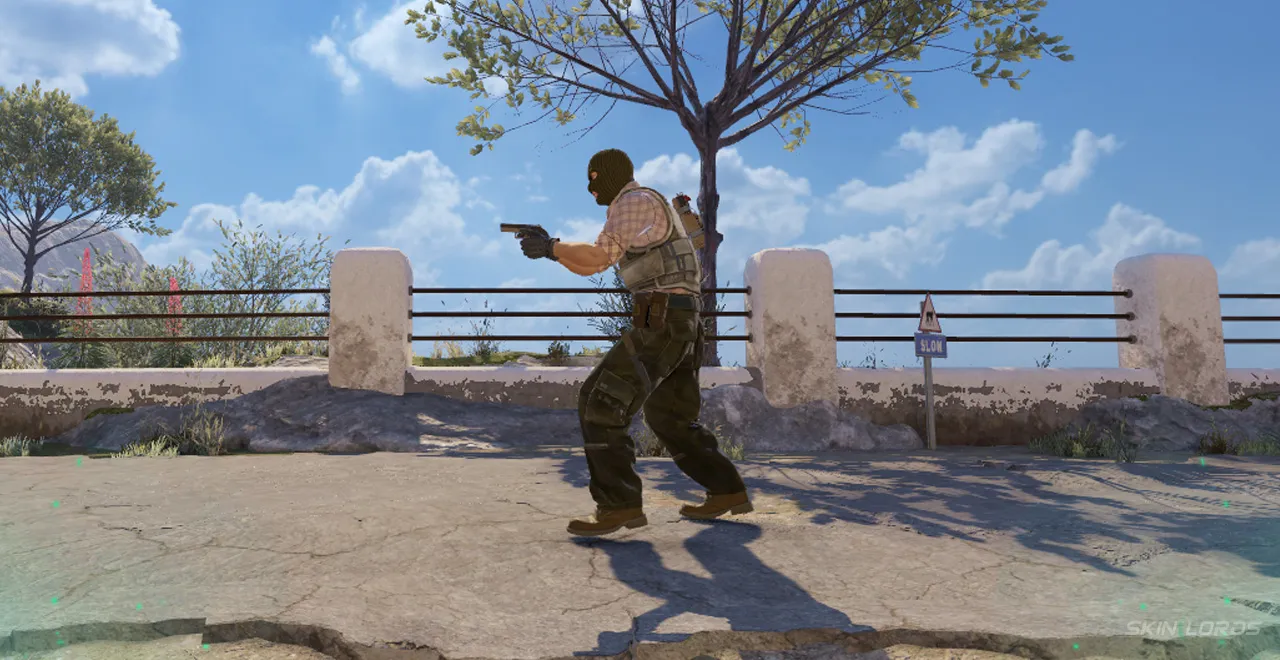
By default, your Walk mode is set to “hold,” meaning that to remain walking, you must hold the bound walk key, while the other walk mode, “toggle,” allows you to simply click on and off walking. A walk bind is simply the key that you press in order to walk, not to be confused with the move forward bind. A walk bind is either toggled or held to slow the player down, concealing any sound of moving.
Why Change CS2 Walk Settings?
For someone who appreciates lurking, changing from a default hold mode to a toggled mode can be an absolute game-changer as far as walking goes. Allowing you not to hold a button for minutes on end, a toggle mode is not as silly as it may appear. As far as a walk bind, the default left shift key is not optimal for their keyboard or mouse setup. Bindable to any key on your keyboard or even your mouse, changing the default walk bind might actually be the change you so desperately need for walking!
Changing CS2 Walk Settings
How to Change CS2 Walk Mode:
- Launch CS2 and locate the settings wheel in the top left corner of the screen
- Once in settings, navigate to the “Keyboard/Mouse” section
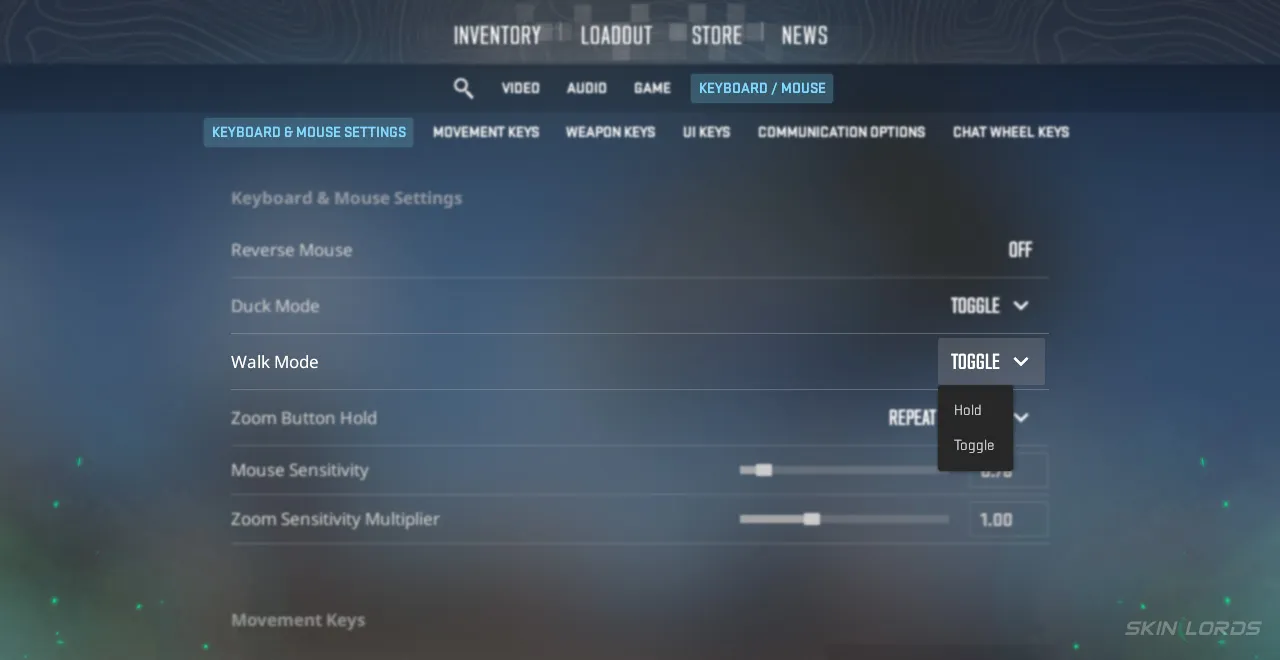
- At the very top of the section is a tab titled “Keyboard & Mouse Settings”, underneath it is a setting called “Walk Mode.”
- From there, Walk Mode can be changed between either “Toggle” or “Hold” using a selector on the right-hand side of the menu
How to Change Your CS2 Walk Bind:
- Launch CS2 and locate the settings wheel in the top left corner of the screen
- Once in settings, navigate to the “Keyboard/Mouse” section
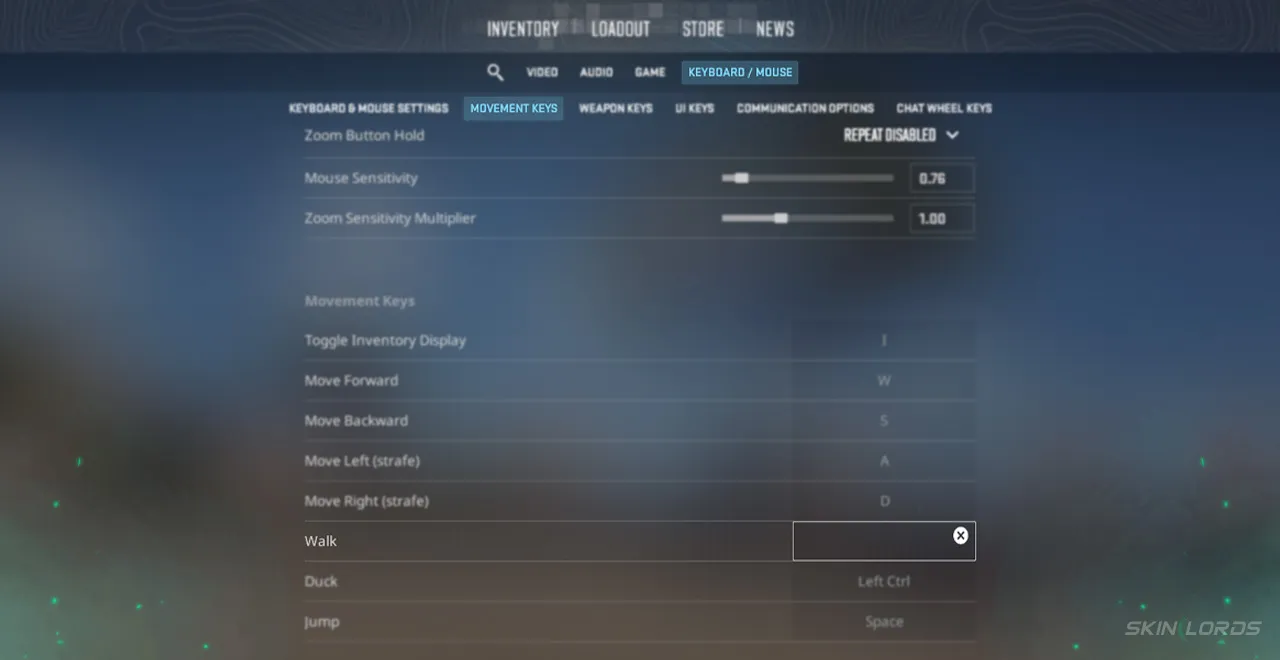
- At the very top of the section is a tab titled “Movement Keys”, underneath it is a bind titled “Walk.”
- To change your walk bind, simply click the section on the right-hand side and press the new key you desire to walk with
Such a quick and easy change, we recommend playing a few games, experimenting with which settings work best for you. Now that you’ve learned what settings to change and where to find them, changes can be made on the fly with only a few clicks! If you have enjoyed this article and would like to see more like it, feel free to leave a comment down below on the settings you’d like to see next!

Similar Articles
See all
Guides

Which CS2 Cases Have Bloodhound Gloves?
07.31.2026
0
32
Guides

Every CS2 Skin With A Blue Gem Pattern
07.31.2026
0
42
Related Casinos

 Stake
Stake
Leave a reply