







































How to Change CS2 HUD Size
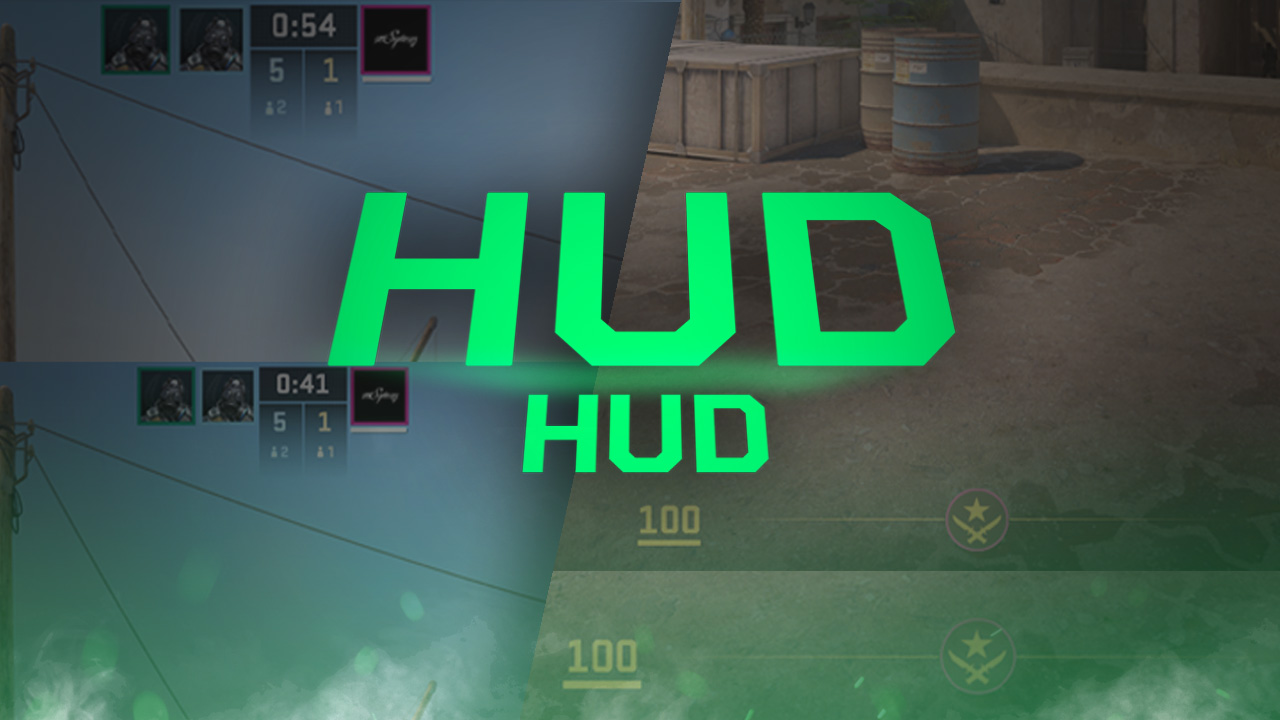
In a game where winning or losing can be down to the smallest details, CS2 HUD size should not be left alone, taking up half the screen. In-game settings can make all the difference, especially when it comes to features that all players use match to match. Today, we will look at how to change your CS2 HUD Size.

Check out more CS2 settings and gameplay guides on our blog:
Where to Find CS2 HUD Settings
Finding your HUD settings is actually quite a simple process! Follow these quick steps:
- Open CS2, and navigate to the open settings
- Once in the settings menu, locate the “Game Settings” tab
- In Game settings, click “HUD,” which will then take you to HUD settings
What CS2 HUD Settings Should You Change?
The most important change to make is a HUD Scale. This is the major setting as it directly adjusts your CS2 HUD Size. For most, a HUD scale of 1 (the default) is suitable, but it is recommended to test several sizes to find what works best for your individual playing style. For some, a larger HUD is useful for seeing important information; others prefer to keep the screen clear to see more of their surroundings.
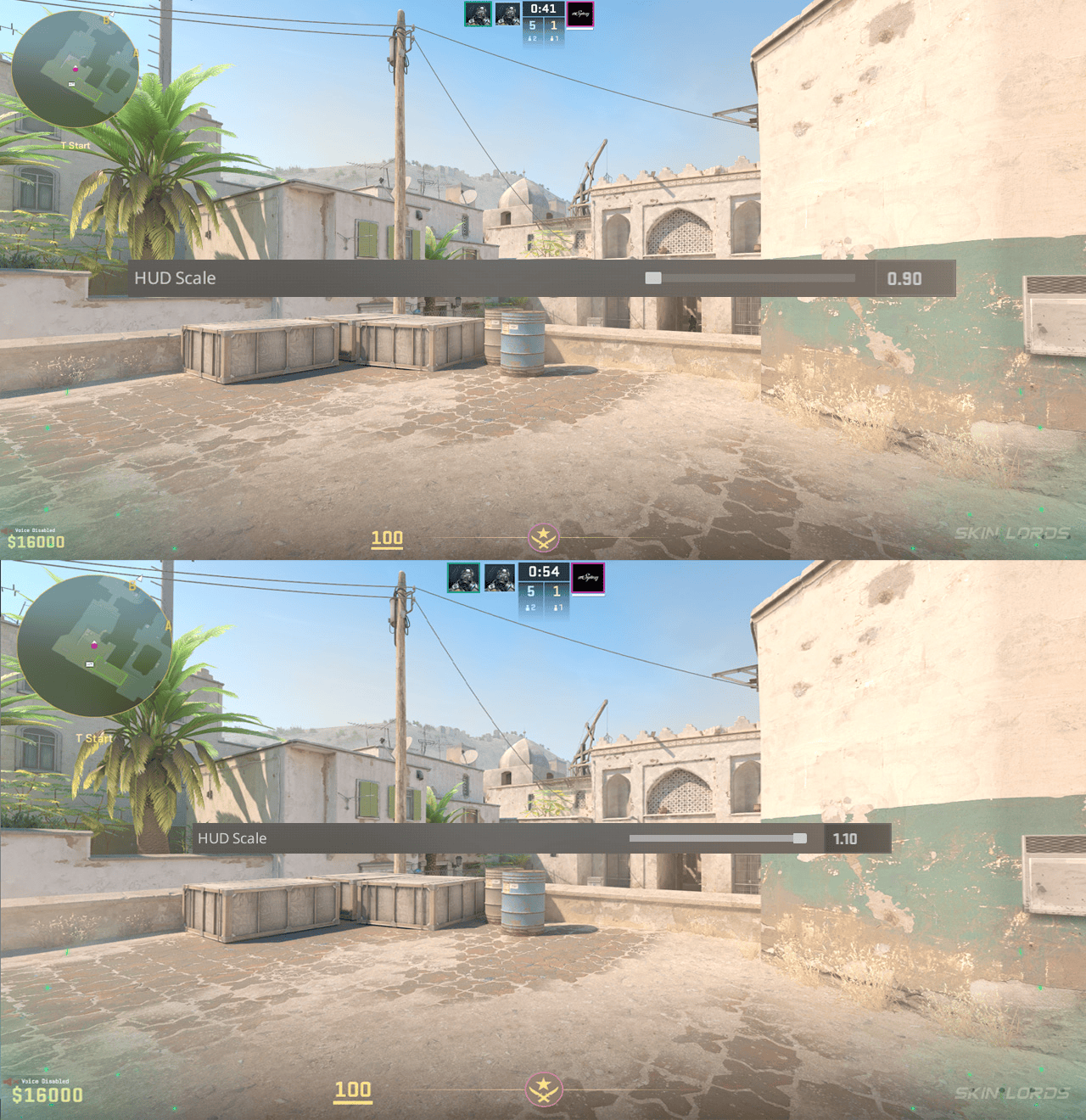
Changing your CS2 HUD Size is an extremely simple process that can reap serious rewards. Those awkward moments where you missed an enemy or ran out of bullets can be fixed by a few simple game settings! If you enjoyed this article and would like to see more setting guides like it, please feel free to leave a comment down below on what you’d like to see covered next.

Similar Articles
See all
CS2 Guides
Which CS2 Cases Have Bloodhound Gloves?
07.31.2026
0
32
CS2 Guides

Every CS2 Skin With A Blue Gem Pattern
07.31.2026
0
43
Related Casinos

 Stake
Stake
Leave a reply