










































How To Change CS2 HUD Color
In a world hyper-focused on competitive performance, it can be peaceful to kick back and improve aesthetic aspects of CS2, such as HUD Color. Taking joy in the little things, CS2, just like life, can become much more enjoyable when you customize the constants around you to your liking. Today, we will be taking a look at how to change your CS2 HUD Color.

Check out more CS2 settings and gameplay guides on our blog:
Where to Find CS2 HUD Color Settings
Unlike other settings that require the use of the developer’s console to access, CS2 HUD color can be accessed easily and changed even more easily! Simply:
- Open CS2, and navigate to the open settings
- Once in the settings menu, locate the “Game Settings” tab
- In Game settings, click “HUD” which will then take you to HUD settings
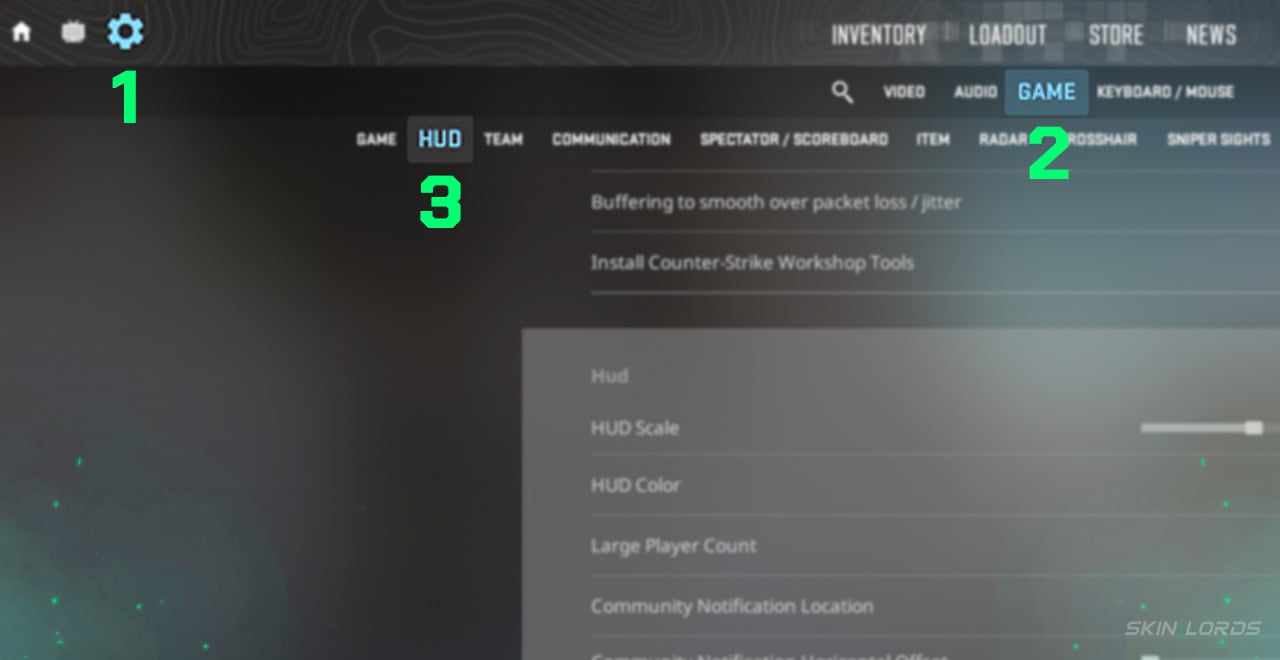
How to Change Your CS2 HUD Color
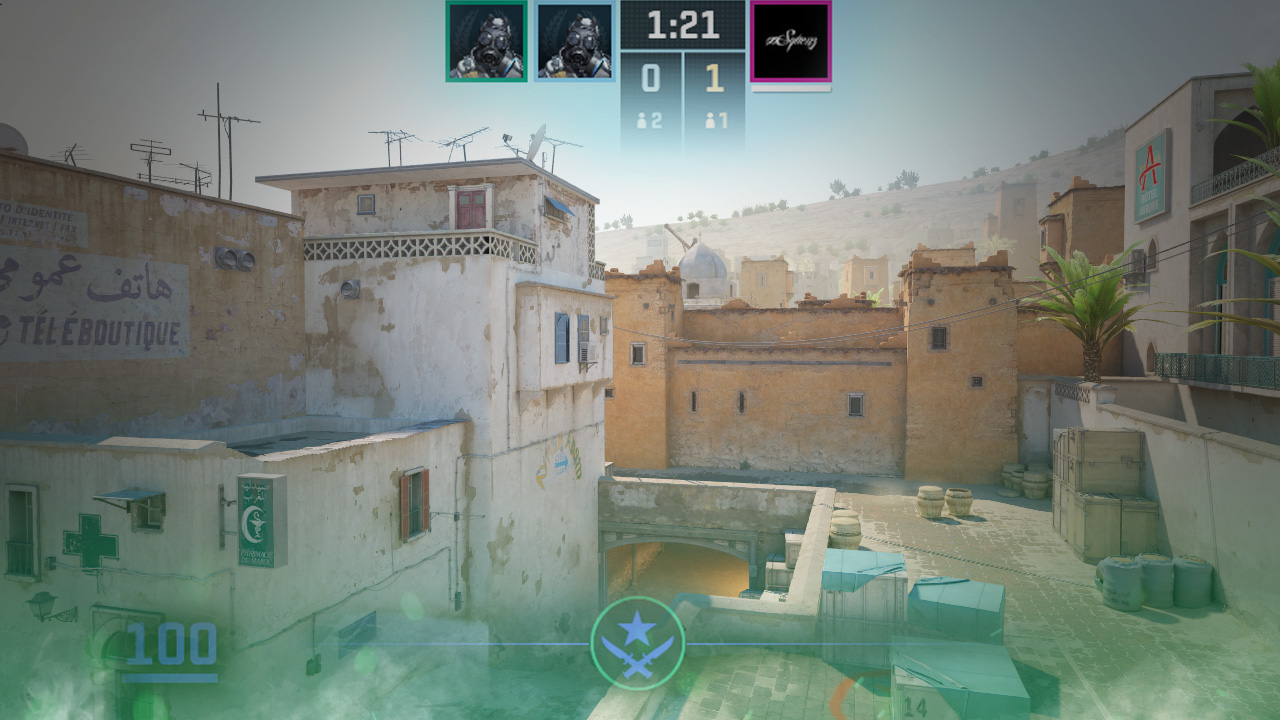
Under HUD settings, just below HUD Scale, is the CS2 HUD Color adjustment. Players can choose from white, bright white, light blue, blue, purple, red, orange, yellow, green, aqua, and pink for solid HUD colors. If you’d like a more static color, two available options are Team Color and Teammate Color. Team Color will alter your HUD color based on whether you are on the CT or T sides. Teammate Color will adjust your player’s color in the game (for example, player orange would have an orange HUD). In this case, there is no correct color to choose from, whether it’s your favourite color or something that pops out to you in-game, every CS2 HUD color choice is a good choice!
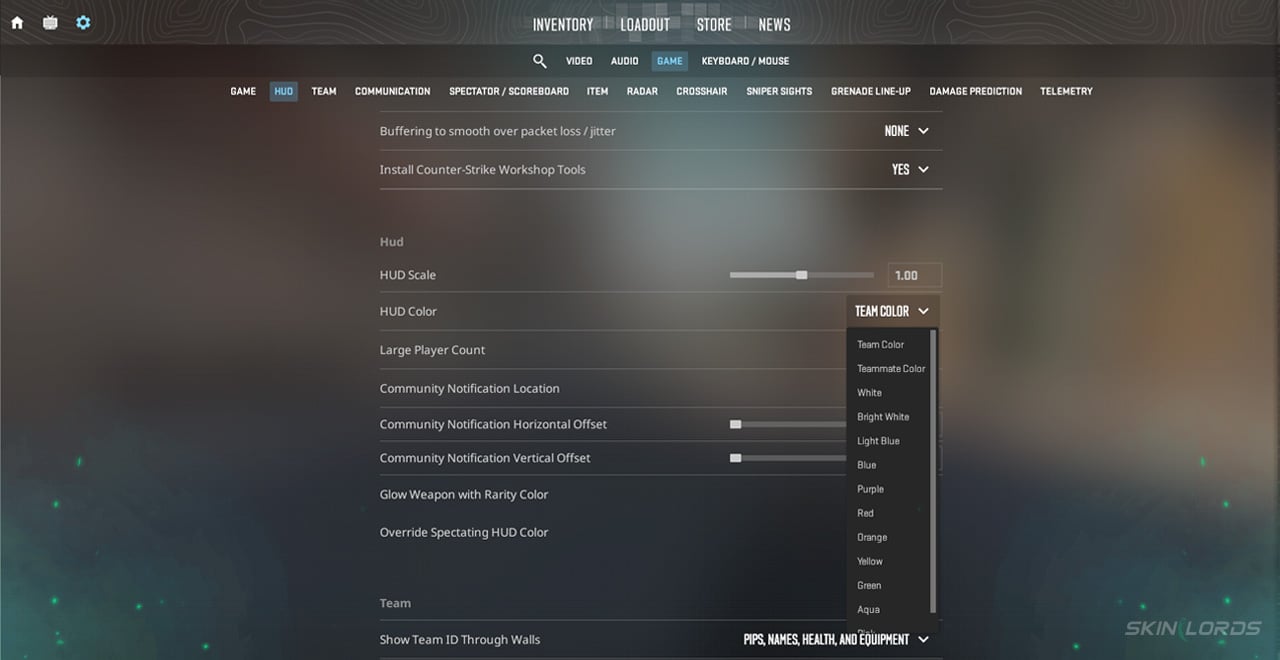
Simple changes, such as changing a HUD color, can really make a difference when playing CS2. Whether it makes the game more enjoyable for aesthetic purposes, such as matching your inventory, or even if it’s tactical to help your HUD stand out boldly in dark situations, changing your HUD color is always important. If you enjoyed this article and would like to see more setting guides like it, please feel free to leave a comment down below on what you’d like to see covered next.

Similar Articles
See all
CS2 Guides
Which CS2 Cases Have Bloodhound Gloves?
07.31.2026
0
31
CS2 Guides

Every CS2 Skin With A Blue Gem Pattern
07.31.2026
0
41
Related Casinos

 Stake
Stake
Leave a reply