










































How to Change your CS2 FOV
One of the more unknown features of CS2 is that you can actually adjust your FOV! Just as switching your weapon to your left hand allows you to see more of your screen and check angles, adjusting your FOV settings is crucial to gaining an advantage in competitive play. In this article, we’ll delve into easy-to-use console commands to change your own FOV, why you may want to tweak this at all, and optimal settings for peak performance.

Check out our complete CS2 viewmodel guide to learn how to change your CS2 viewmodel.
What is FOV in CS2?
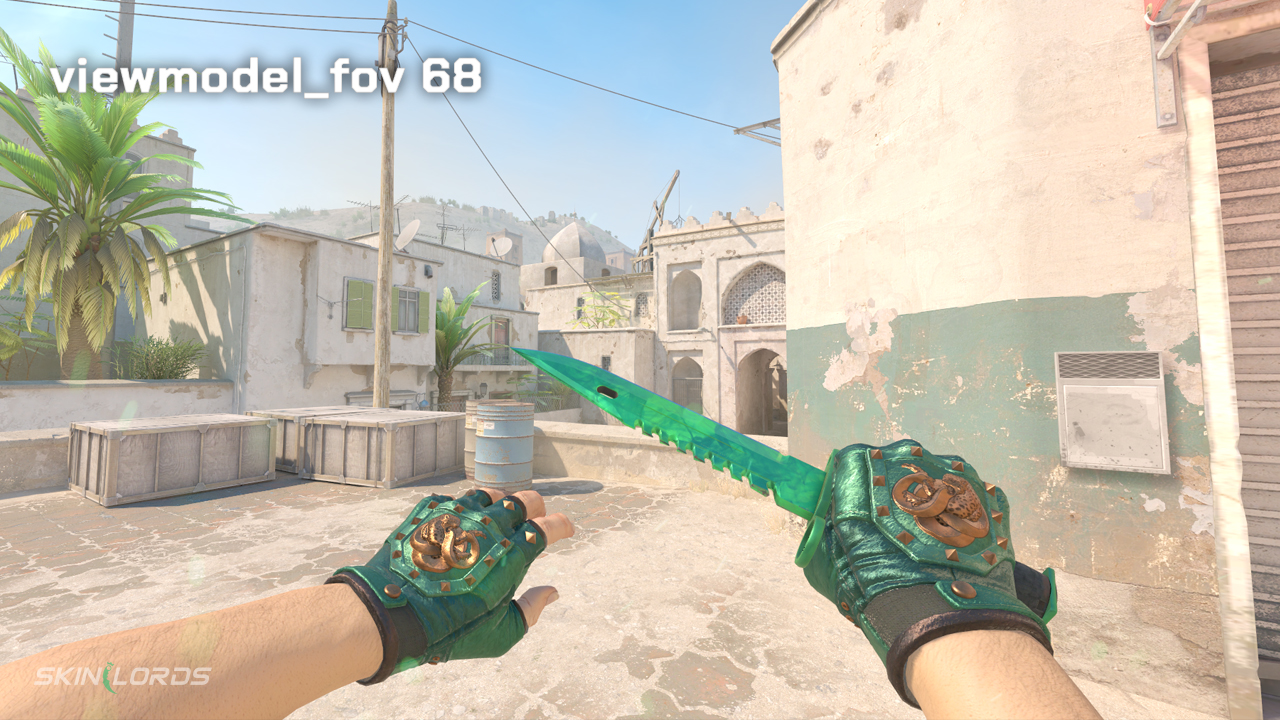
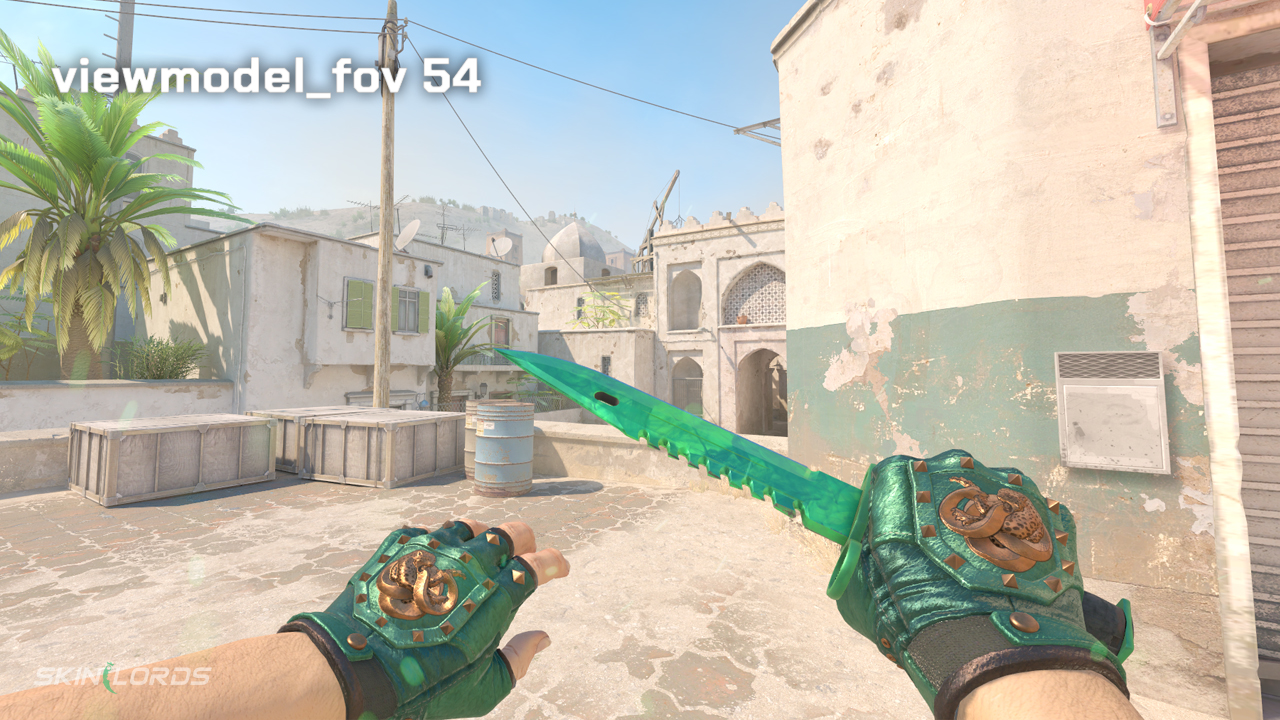
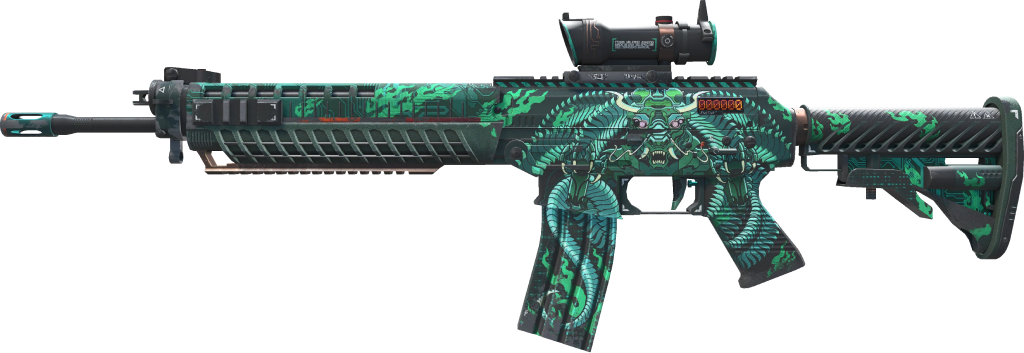
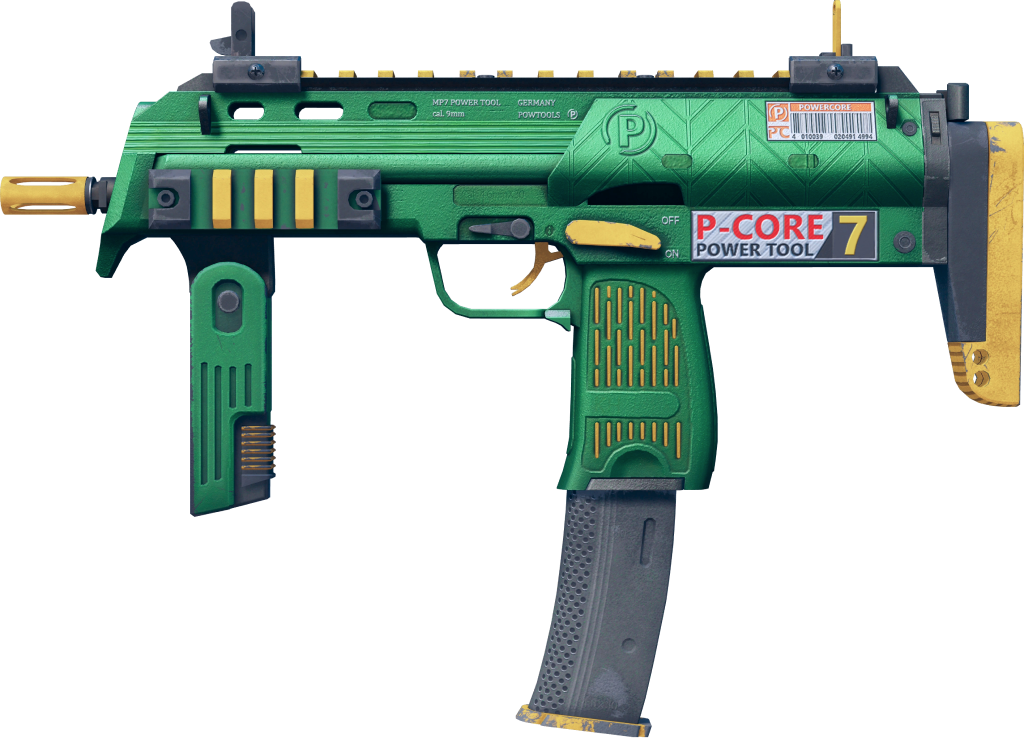
Just as in many other fps games, CS2 allows you to change how “zoomed in/out” your camera is. A bigger FOV in CS2 increases your peripheral vision, but consequently, everything will appear smaller on your screen. The opposite is true. If you decrease your FOV in CS2, your camera is more “zoomed in,” allowing you to see everything bigger but just see less around you. Here is an example of your default FOV on the left and a super zoomed-out FOV on the right. As you can see, understanding FOV is crucial to your gameplay.
Why Change FOV?
There’s obviously the benefit of seeing more on your screen and increasing your peripheral vision. But there are other reasons to tweak your CS2 FOV.
- Performance – Adjusting your FOV settings can significantly affect your game performance, simply due to how much more or less “stuff” your computer has to render. A lower FOV means your screen is more zoomed in, therefore decreasing the amount of objects and models that need to be rendered by your GPU. The opposite goes for a wider FOV. More pixels need to be generated as you’re seeing more on your screen, increasing the load on your GPU. If you have a lower-end system or are suffering from low FPS, lowering FOV (“zooming in”) could be advantageous.
- Aiming – Just as some pros prefer wider aspect ratios such as 4:3, a smaller FOV may improve your ability to aim as all objects appear bigger. The tradeoff for a narrower angle of view in most cases is not worth it, however, as you see less of the game overall.
- Comfort – Personal comfort is a significant factor when adjusting your FOV. Some players may experience motion sickness when using a very high or very low FOV, so tweaking and finding your own preferences can make your overall CS2 experience more enjoyable.
How to Change FOV
To change your CS2 FOV, you can use just one simple console command to fine-tune it!
If you have not opened your console before, here’s a step-by-step guide to follow:
-
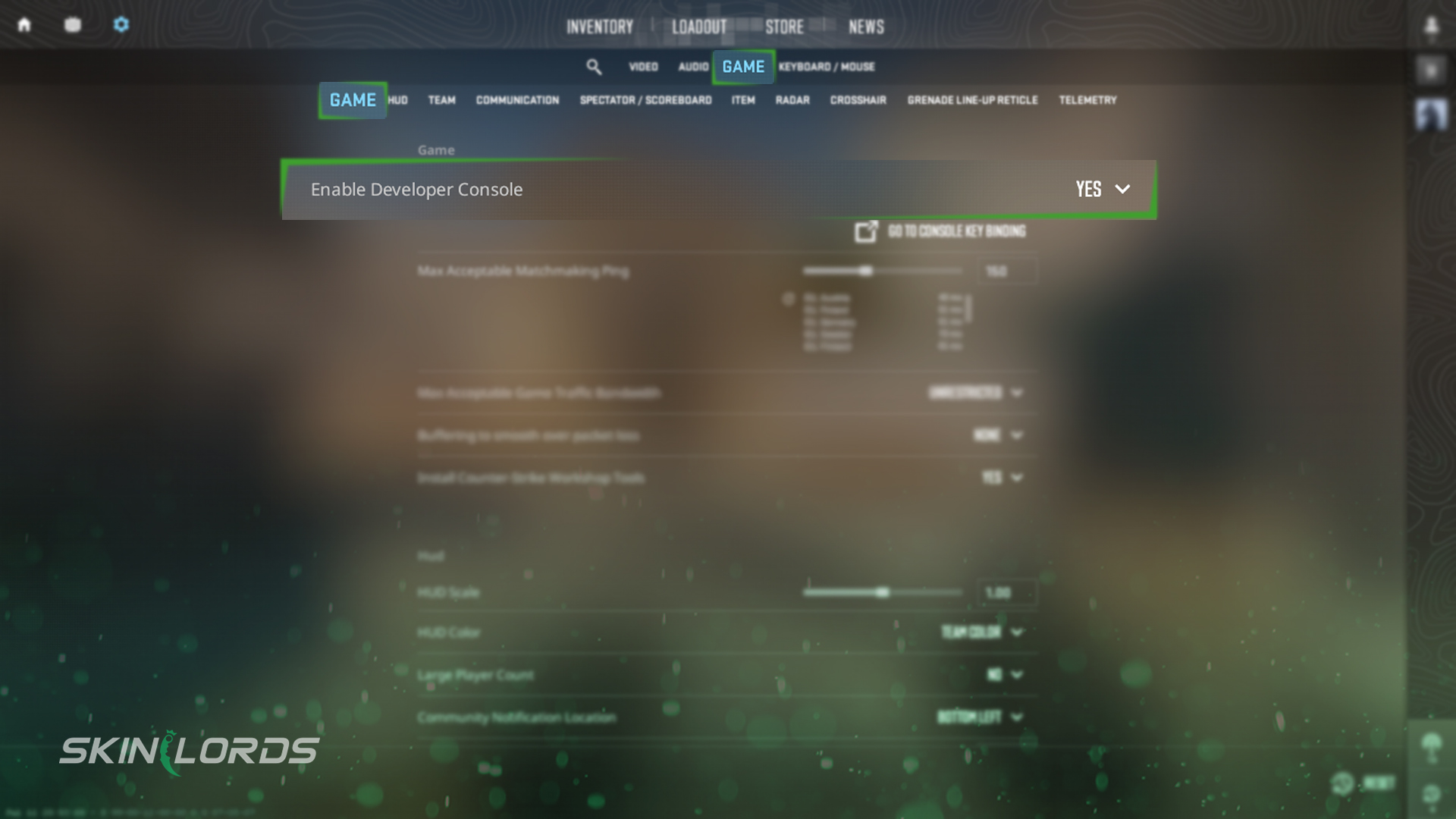
1Enable the Developer Console – Go to the game settings, navigate to the “Game” tab, and set “Enable Developer Console “(~)” to “Yes.”
-
2Open to the Console: The default keybind to open the developer console, generally referred to simply as the console, is the tilde key (~). You can change this keybind in settings according to your preference.
-
3Using the Console: There are many commands you can enter in this UI, and we have a more detailed guide on using the console here on SkinLords!
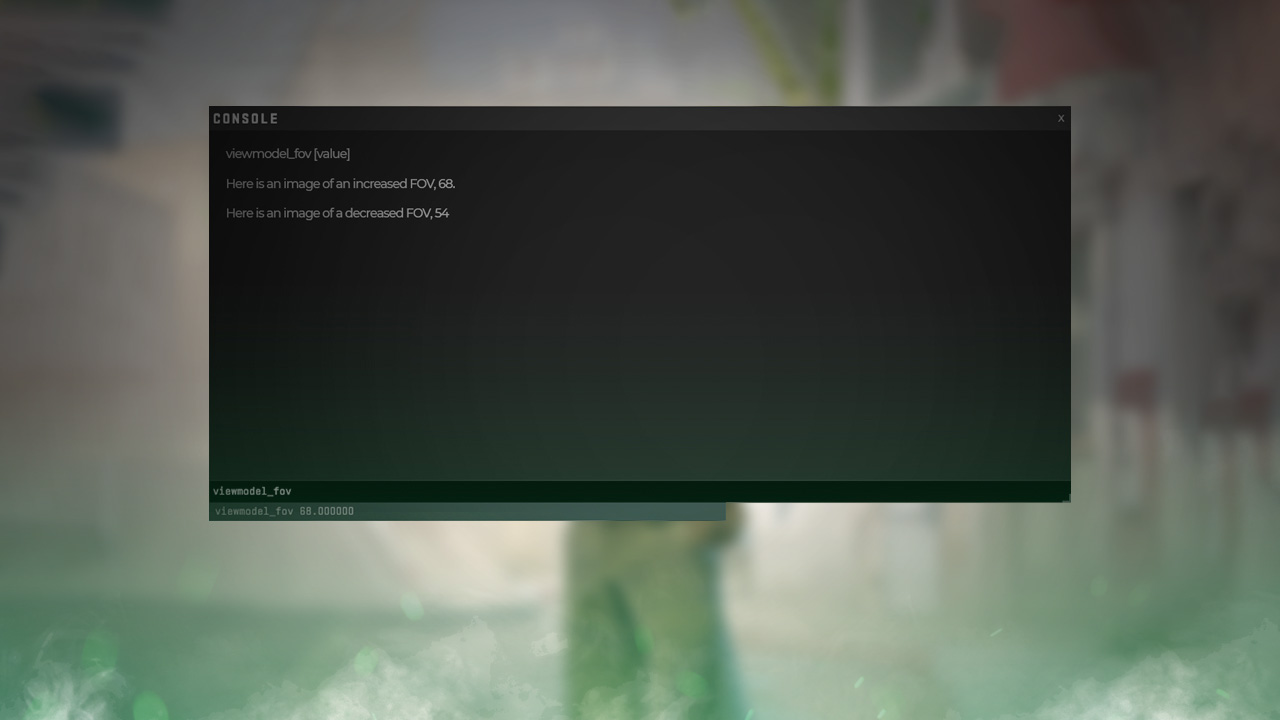
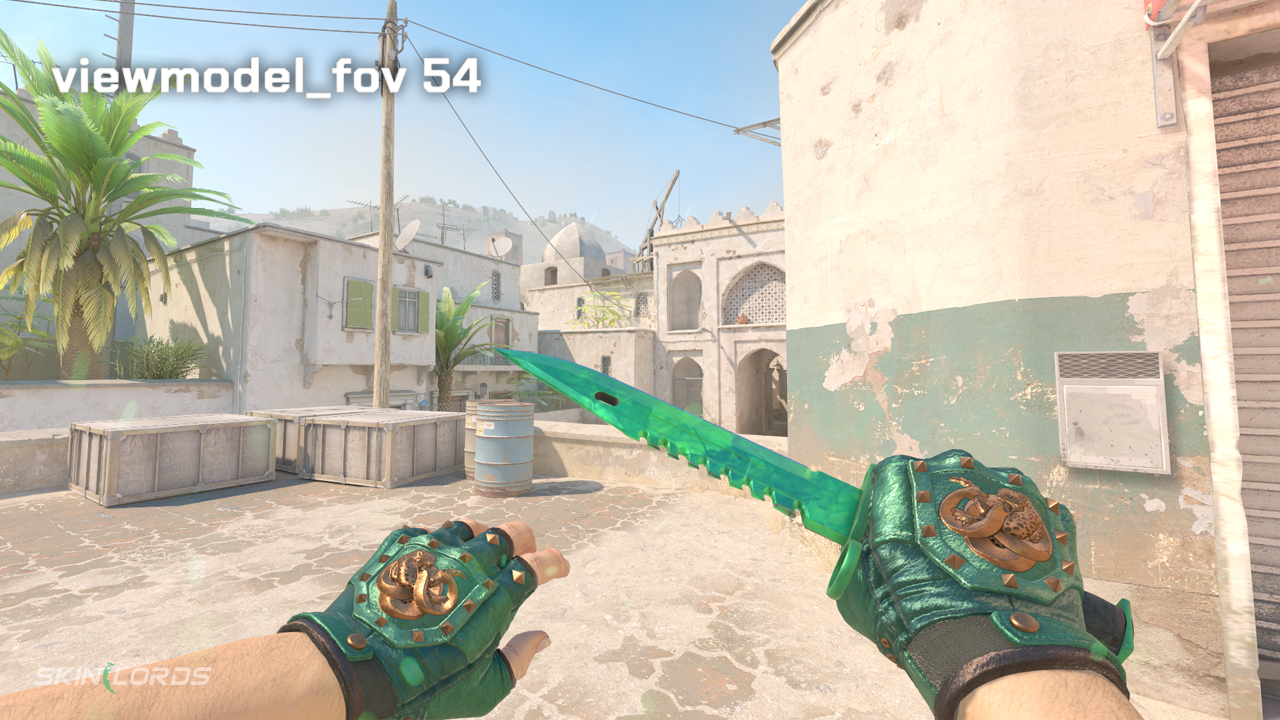
Opening your console, simply enter the text below, entering a value with a maximum value of 54 and a minimum value of 68 in place of “[value]” (delete the brackets as well). To increase FOV, simply input a number higher than 60, which is the default field, and to decrease your FOV, input a value lower than 60.
viewmodel_fov [value]
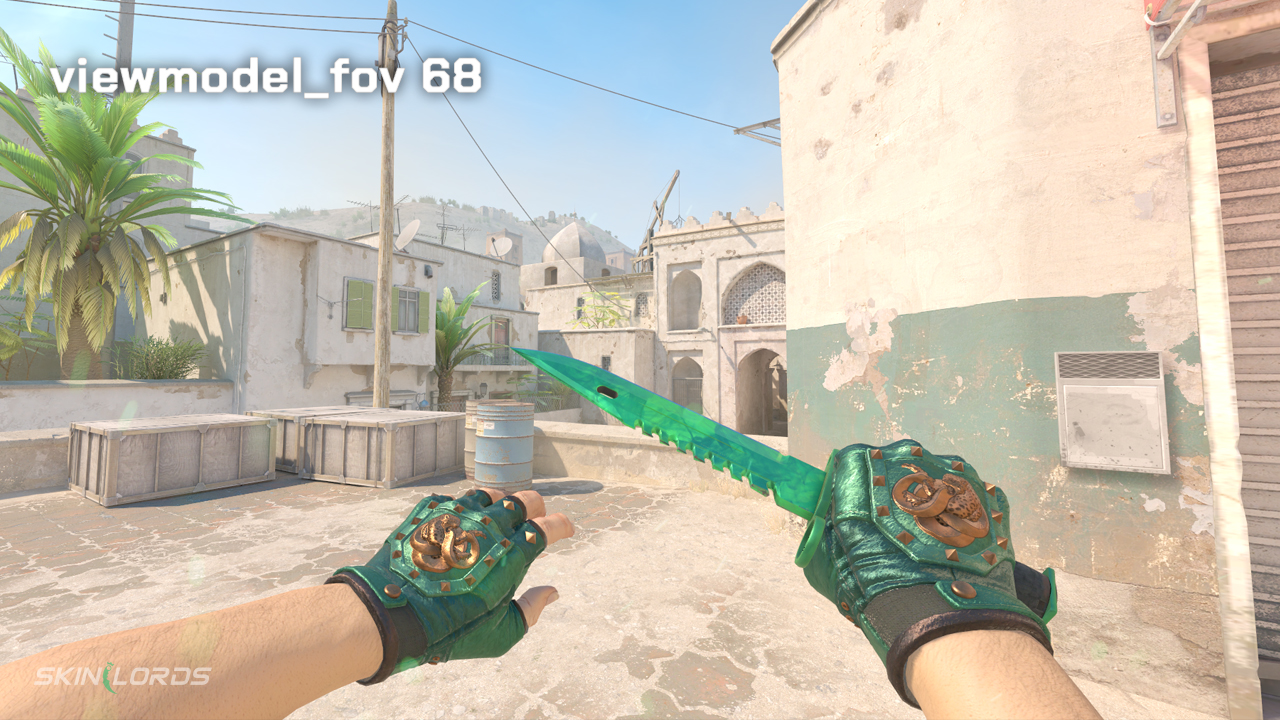
Here is an image of an increased FOV, 68.
Here is an image of a decreased FOV, 54
The Optimal CS2 FOV
FOV settings are purely up to personal preference, and many players prefer the default FOV (60) simply because it’s what they find most comfortable. The default FOV in CS2, for the most part, offers a balance between what you can see on your screen and avoiding potential motion sickness.
As said previously, if you have a lower-end operating system that may suffer FPS-wise when running CS2, lowering your FOV may be critical to maintaining a stable FPS.
If you are serious about improving in CS2, however, the best FOV setting for you is, without a doubt, 68. This is the highest possible FOV in CS2, ensuring you can see everything possible and increasing your situational awareness. This provides a significant advantage over enemies simply because you can see a wider angle than them. Beware, however, as a higher FOV decreases the perceived size of all objects, and this transition period may make aiming more challenging.
Wrapping Up!
In the article, we covered what FOV in CS2 is, why and how to change your FOV, and the optimal FOV to use in CS2. To learn more about viewmodel commands and how to change your viewmodel position, we have another article right here on SkinLords! And with that, keep improving, and have a great day!
Similar Articles
See all
Guides

What Are Original Games On Online Casinos?
07.19.2026
0
94
Guides

Are Live Casino Games Fair?
07.16.2026
0
95
Related Casinos

 Stake
Stake
Leave a reply